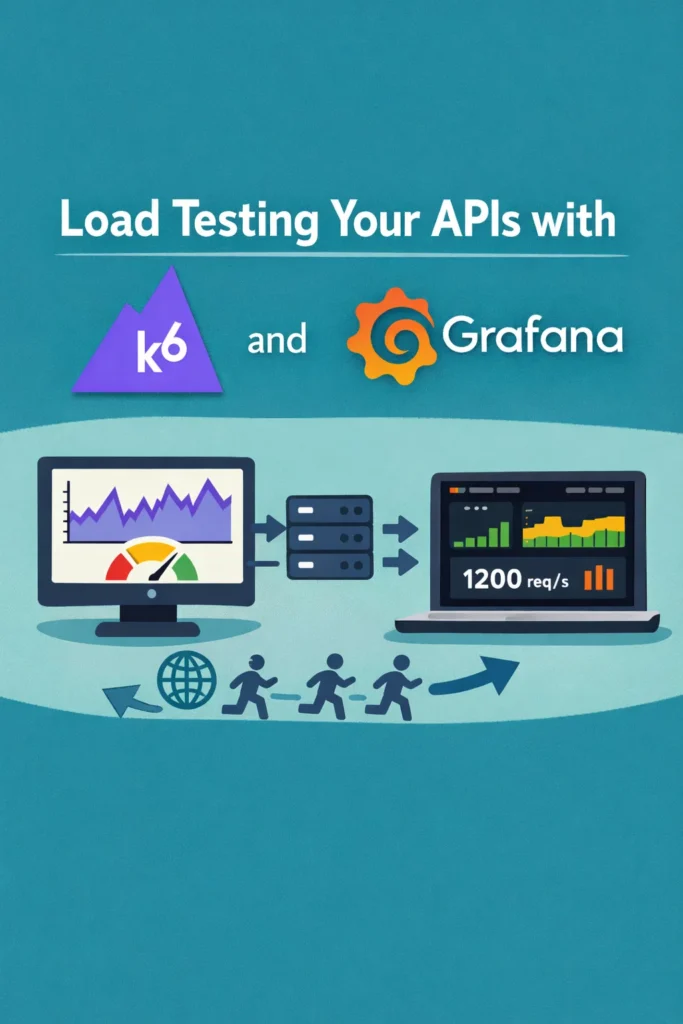
If your API handles ten requests per second during development but crashes at a hundred in production, you have a load testing problem — or more precisely, a lack of one. Load testing APIs with k6 gives you a developer-friendly way to simulate realistic traffic, identify bottlenecks, and set performance baselines before your users find the limits for you. This guide walks through installing k6, writing test scripts in JavaScript, ramping load with stages, setting pass/fail thresholds, interpreting the output metrics, and integrating load tests into your CI pipeline.
What Is k6?
k6 is an open-source load testing tool built by Grafana Labs. Unlike older tools like JMeter or Gatling, k6 tests are written in JavaScript (ES6 modules), which makes them accessible to any developer who works with modern web technologies. The tool itself is a Go binary, so it’s fast, lightweight, and runs without a JVM or heavy runtime.
k6 simulates virtual users (VUs) that execute your test script in parallel. Each VU runs the script in a loop, making HTTP requests and validating responses just like a real client would. As a result, you can model realistic traffic patterns — gradual ramp-ups, sustained load, and spike scenarios — all from a single test file. Additionally, k6 outputs detailed metrics including response times, error rates, and throughput that help you pinpoint exactly where your API breaks under pressure.
Installing k6
k6 installs as a single binary with no dependencies.
# macOS
brew install k6

# Windows (via Chocolatey)
choco install k6

# Linux (Debian/Ubuntu)
sudo gpg -k
sudo gpg --no-default-keyring --keyring /usr/share/keyrings/k6-archive-keyring.gpg \
  --keyserver hkp://keyserver.ubuntu.com:80 --recv-keys C5AD17C747E3415A3642D57D77C6C491D6AC1D68
echo "deb [signed-by=/usr/share/keyrings/k6-archive-keyring.gpg] https://dl.k6.io/deb stable main" \
  | sudo tee /etc/apt/sources.list.d/k6.list
sudo apt-get update && sudo apt-get install k6

# Docker
docker run --rm -i grafana/k6 run - <script.js

# Verify installation
k6 version
# Expected output: k6 v0.5x.x
Writing Your First Load Test
A k6 test script exports a default function that represents one iteration of a virtual user’s behavior.
// tests/load/basic.js
import http from 'k6/http';
import { check, sleep } from 'k6';

// Test configuration
export const options = {
  vus: 10,        // 10 virtual users
  duration: '30s', // Run for 30 seconds
};

// Default function runs once per VU iteration
export default function () {
  const response = http.get('http://localhost:3000/api/users');

  // Validate the response
  check(response, {
    'status is 200': (r) => r.status === 200,
    'response time < 500ms': (r) => r.timings.duration < 500,
    'response has users': (r) => r.json().length > 0,
  });

  // Pause between iterations to simulate real user behavior
  sleep(1);
}
Run it with:
k6 run tests/load/basic.js

# Expected output:
#   scenarios: (100.00%) 1 scenario, 10 max VUs, 1m0s max duration
#             exec: default
#
#   ✓ status is 200
#   ✓ response time < 500ms
#   ✓ response has users
#
#   checks.....................: 100.00% ✓ 270  ✗ 0
#   http_req_duration..........: avg=45ms  min=12ms  max=189ms  p(90)=78ms  p(95)=112ms
#   http_reqs..................: 270       9.0/s
#   iterations.................: 270       9.0/s
#   vus........................: 10        min=10  max=10
The sleep(1) call is important because it simulates think time between requests. Without it, each VU fires requests as fast as possible, which doesn’t reflect real user behavior and produces artificially high throughput numbers.
Understanding k6 Output Metrics
k6 produces several metrics after each test run. Understanding what they mean is more important than writing the test itself.
| Metric | What It Means | What to Watch |
|---|---|---|
http_req_duration | Total time for the request (DNS + connect + TLS + send + wait + receive) | p95 and p99 values — these represent worst-case user experience |
http_req_failed | Percentage of requests that returned non-2xx status codes | Any value above 0% under normal load indicates a problem |
http_reqs | Total number of requests and requests per second | Compare against your expected production traffic |
checks | Pass/fail count for your check() assertions | Failed checks indicate functional regressions under load |
iterations | Number of complete script executions | Should roughly equal VUs × (duration / iteration time) |
vus | Number of active virtual users at any point | Verify this matches your configuration |
The percentile values are the most useful metrics. The average response time hides outliers — an API with 50ms average but 3-second p99 has a serious tail latency problem that affects 1% of users on every request. Always look at p90, p95, and p99, not the average.
Ramping Load with Stages
Real traffic doesn’t start at full volume. Use stages to gradually increase load, sustain it, and ramp down — this reveals how your API behaves as traffic grows.
// tests/load/staged.js
import http from 'k6/http';
import { check, sleep } from 'k6';

export const options = {
  stages: [
    { duration: '1m', target: 20 },   // Ramp up to 20 VUs over 1 minute
    { duration: '3m', target: 20 },   // Stay at 20 VUs for 3 minutes
    { duration: '1m', target: 50 },   // Ramp up to 50 VUs over 1 minute
    { duration: '3m', target: 50 },   // Stay at 50 VUs for 3 minutes
    { duration: '1m', target: 0 },    // Ramp down to 0 over 1 minute
  ],
  thresholds: {
    http_req_duration: ['p(95)<500'],  // 95% of requests must be under 500ms
    http_req_failed: ['rate<0.01'],    // Less than 1% failure rate
    checks: ['rate>0.99'],             // 99% of checks must pass
  },
};

export default function () {
  const response = http.get('http://localhost:3000/api/users');

  check(response, {
    'status is 200': (r) => r.status === 200,
    'response time < 500ms': (r) => r.timings.duration < 500,
  });

  sleep(1);
}
The thresholds block is critical because it turns your load test into a pass/fail gate. If the p95 response time exceeds 500ms or the failure rate exceeds 1%, k6 exits with a non-zero code. This makes load tests usable in CI pipelines where you need an automated decision. For understanding how rate limiting interacts with load testing, see our guide on API rate limiting strategies.
Testing Multiple Endpoints
Real API traffic hits multiple endpoints with different patterns. k6 lets you model this with groups and weighted scenarios.
// tests/load/multi-endpoint.js
import http from 'k6/http';
import { check, group, sleep } from 'k6';

const BASE_URL = 'http://localhost:3000/api';

export const options = {
  scenarios: {
    // 70% of traffic: browsing users
    browse: {
      executor: 'constant-vus',
      vus: 35,
      duration: '5m',
      exec: 'browseFlow',
    },
    // 20% of traffic: searching
    search: {
      executor: 'constant-vus',
      vus: 10,
      duration: '5m',
      exec: 'searchFlow',
    },
    // 10% of traffic: creating orders
    order: {
      executor: 'constant-vus',
      vus: 5,
      duration: '5m',
      exec: 'orderFlow',
    },
  },
  thresholds: {
    'http_req_duration{scenario:browse}': ['p(95)<300'],
    'http_req_duration{scenario:search}': ['p(95)<800'],
    'http_req_duration{scenario:order}': ['p(95)<1000'],
    http_req_failed: ['rate<0.01'],
  },
};

export function browseFlow() {
  group('Browse Products', () => {
    const listResponse = http.get(`${BASE_URL}/products`);
    check(listResponse, {
      'product list status 200': (r) => r.status === 200,
    });

    // Pick a random product from the list
    const products = listResponse.json();
    if (products.length > 0) {
      const randomId = products[Math.floor(Math.random() * products.length)].id;
      const detailResponse = http.get(`${BASE_URL}/products/${randomId}`);
      check(detailResponse, {
        'product detail status 200': (r) => r.status === 200,
      });
    }
  });

  sleep(2);
}

export function searchFlow() {
  group('Search Products', () => {
    const terms = ['laptop', 'keyboard', 'monitor', 'headphones'];
    const term = terms[Math.floor(Math.random() * terms.length)];
    const response = http.get(`${BASE_URL}/products/search?q=${term}`);

    check(response, {
      'search status 200': (r) => r.status === 200,
      'search returns results': (r) => r.json().length >= 0,
    });
  });

  sleep(3);
}

export function orderFlow() {
  group('Create Order', () => {
    const payload = JSON.stringify({
      productId: 1,
      quantity: 2,
    });

    const response = http.post(`${BASE_URL}/orders`, payload, {
      headers: { 'Content-Type': 'application/json' },
    });

    check(response, {
      'order created': (r) => r.status === 201,
    });
  });

  sleep(5);
}
The scenarios configuration lets you run different user flows concurrently with different VU counts. This models realistic traffic where most users browse, some search, and a few create orders. Furthermore, the per-scenario thresholds let you set different performance expectations — read endpoints should be faster than write endpoints.
Interpreting Results: What the Numbers Mean
Running the test produces numbers, but knowing what to do with them separates useful load testing from cargo-cult performance testing.
p95 response time is your primary metric. It represents the experience of your worst 5% of users. If p95 is 500ms but the average is 50ms, you have a tail latency problem — likely caused by occasional database slow queries, garbage collection pauses, or connection pool exhaustion. For diagnosing connection pool issues specifically, see our guide on database connection pooling with PgBouncer and HikariCP.
Watch for response time degradation as VUs increase. If response time stays flat at 50ms with 10 VUs but jumps to 500ms at 50 VUs, your bottleneck is concurrency-related — typically database connections, thread pool limits, or mutex contention.
Error rate spikes indicate a hard limit. If your API returns 200 OK at 40 VUs but starts returning 503 errors at 50 VUs, you’ve found a capacity ceiling. This could be a connection pool running out, a rate limiter kicking in, or the server running out of memory. For understanding rate limiting behavior under load, see our API rate limiting fundamentals.
Throughput (requests per second) plateaus reveal saturation. If increasing VUs from 50 to 100 doesn’t increase RPS, your server is saturated. Additional VUs just queue up, increasing response times without increasing throughput. This is the point where you need horizontal scaling, caching, or query optimization.
Running k6 in CI/CD
Load tests in CI/CD serve as performance regression gates — they catch changes that make the API slower before those changes reach production.
# .github/workflows/load-test.yml
name: Load Tests

on:
  pull_request:
    branches: [main]
    paths:
      - 'src/routes/**'
      - 'src/services/**'
      - 'src/middleware/**'

jobs:
  load-test:
    runs-on: ubuntu-latest
    timeout-minutes: 15

    services:
      postgres:
        image: postgres:16
        env:
          POSTGRES_DB: testdb
          POSTGRES_USER: testuser
          POSTGRES_PASSWORD: testpass
        ports:
          - 5432:5432
        options: >-
          --health-cmd pg_isready
          --health-interval 10s
          --health-timeout 5s
          --health-retries 5

    steps:
      - uses: actions/checkout@v4

      - uses: actions/setup-node@v4
        with:
          node-version: 20
          cache: 'npm'

      - uses: grafana/setup-k6-action@v1

      - name: Install dependencies and seed database
        run: npm ci && npm run db:seed
        env:
          DATABASE_URL: postgresql://testuser:testpass@localhost:5432/testdb

      - name: Start API server
        run: npm start &
        env:
          DATABASE_URL: postgresql://testuser:testpass@localhost:5432/testdb
          PORT: 3000

      - name: Wait for API
        run: |
          for i in $(seq 1 30); do
            curl -s http://localhost:3000/health && break
            sleep 1
          done

      - name: Run load tests
        run: k6 run tests/load/ci-smoke.js

      - name: Upload k6 results
        uses: actions/upload-artifact@v4
        if: ${{ !cancelled() }}
        with:
          name: k6-results
          path: k6-results/
          retention-days: 14
The paths filter ensures load tests only run when API code changes, not on documentation or frontend changes. The CI load test should use lower VU counts than your full load test — it’s a smoke test for performance regressions, not a capacity test. For more CI/CD pipeline patterns, see our guide on CI/CD for Node.js projects using GitHub Actions.
// tests/load/ci-smoke.js — lightweight version for CI
import http from 'k6/http';
import { check, sleep } from 'k6';

export const options = {
  stages: [
    { duration: '30s', target: 10 },
    { duration: '1m', target: 10 },
    { duration: '30s', target: 0 },
  ],
  thresholds: {
    http_req_duration: ['p(95)<500'],
    http_req_failed: ['rate<0.01'],
  },
};

export default function () {
  const response = http.get('http://localhost:3000/api/users');
  check(response, {
    'status is 200': (r) => r.status === 200,
  });
  sleep(1);
}
Real-World Scenario: Finding a Database Bottleneck
Consider a small team running a Node.js API backed by PostgreSQL. The API handles 50 requests per second in production with average response times under 100ms. After adding a new search endpoint with a full-text query, the team notices occasional slowdowns but can’t reproduce them locally.
They write a k6 script that simulates their production traffic pattern: 70% reads, 20% search queries, and 10% writes. At 20 VUs, everything looks fine — p95 stays under 200ms. At 40 VUs, the search endpoint’s p95 jumps to 2 seconds while other endpoints remain fast. At 60 VUs, the entire API degrades because the slow search queries hold database connections, starving the connection pool for all other requests.
The root cause: the full-text search query lacks a GIN index and performs a sequential scan under concurrent load. With 10 concurrent search queries competing for connections, the pool (default 10 connections) is exhausted. The fix is two-fold — add a GIN index to the search column and increase the connection pool size from 10 to 25. After the fix, k6 confirms that p95 stays under 300ms even at 100 VUs.
The key insight is that the bottleneck only appeared under concurrent load. Local testing with a single user would never reveal the connection pool exhaustion pattern. Load testing surfaces the interaction between concurrent requests, database connections, and query performance that production traffic exposes. For monitoring these patterns in production, see our guide on monitoring and logging with Prometheus and Grafana.
When to Use Load Testing APIs with k6
- You need to verify your API handles expected production traffic levels without degradation
- You’re deploying a new endpoint or feature that changes query patterns or adds database load
- Your application has hard performance requirements (SLAs) that need automated verification
- You want to find the breaking point of your infrastructure before your users find it for you
- You need a performance regression gate in CI/CD that prevents slow code from reaching production
When NOT to Use k6
- You need to test browser rendering performance or client-side JavaScript execution — use Lighthouse or WebPageTest instead
- You’re testing a third-party API you don’t control — load testing someone else’s infrastructure without permission is abusive and potentially illegal
- Your API handles fewer than 10 requests per second and has no growth expectations — the engineering effort of load testing exceeds the risk of performance issues
- You need distributed load generation across multiple regions — k6 Cloud (paid) handles this, but the open-source CLI runs from a single machine
Common Mistakes with k6 Load Testing
- Forgetting the
sleep()call. Without think time between iterations, VUs fire requests as fast as possible. This produces unrealistically high throughput and masks concurrency issues. Addsleep(1)tosleep(3)between iterations to simulate real user pacing. - Testing only the happy path. If your load test hits one endpoint with one set of parameters, you’re testing cache performance, not API performance. Use randomized parameters, multiple endpoints, and realistic traffic distributions.
- Running load tests against production without warning. Load tests generate significant traffic. Running them against production without coordination can trigger rate limiters, alert on-call engineers, or degrade service for real users. Use staging environments or schedule production tests during low-traffic windows.
- Looking only at average response time. Averages hide outliers. An API with 50ms average and 5-second p99 gives 1% of users a terrible experience on every request. Always set thresholds on p95 or p99, not the average.
- Setting unrealistic thresholds. A threshold of
p(95)<50msfor an endpoint that queries a database is unrealistic in CI where the database runs in a container on a shared runner. Set CI thresholds 2-3x higher than production thresholds to account for slower CI infrastructure. - Not seeding test data. An empty database responds faster than one with a million rows. If your production database has significant data volume, seed your test environment with representative data before running load tests. Otherwise, your results won’t reflect production performance.
Conclusion
Load testing APIs with k6 gives you a JavaScript-based, developer-friendly way to verify that your API handles real-world traffic patterns. Start with a simple script that hits your most critical endpoint, add stages to simulate traffic ramps, and set thresholds that automatically fail when performance degrades. The real value comes from interpreting results — focus on p95 response times rather than averages, watch for throughput plateaus that indicate saturation, and use error rate spikes to find hard capacity limits.
Run a lightweight smoke test in CI on every PR to catch performance regressions early, and schedule full load tests against staging to validate capacity. For your next step, explore our guide on monitoring with Prometheus and Grafana to track the same metrics k6 measures in your production environment.