Introduction
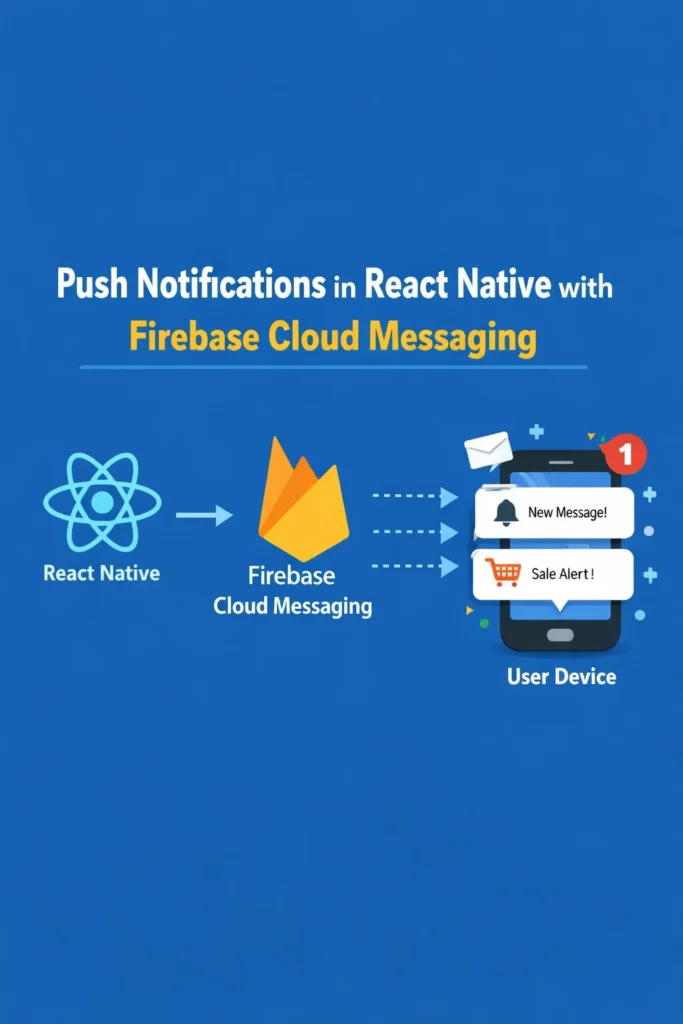
Push notifications keep users engaged by delivering timely updates even when an app is not active. In mobile development, Firebase Cloud Messaging (FCM) is one of the most reliable solutions for sending notifications across Android and iOS. When combined with React Native, it enables cross-platform push notifications with a single backend setup. This comprehensive guide covers everything from initial setup to production-ready notification handling, including platform-specific configurations, message types, deep linking, and best practices for secure and reliable delivery.
Understanding Push Notification Architecture
Before implementing push notifications, it’s essential to understand how they flow through the system:
┌─────────────┐     ┌─────────────┐     ┌─────────────┐     ┌─────────────┐
│    Your     │     │   Firebase  │     │   APNs /    │     │   Mobile    │
│   Backend   │     │     FCM     │     │   Android   │     │   Device    │
└──────┬──────┘     └──────┬──────┘     └──────┬──────┘     └──────┬──────┘
       │                   │                   │                   │
       │ 1. Send message   │                   │                   │
       │    with token     │                   │                   │
       │──────────────────>│                   │                   │
       │                   │                   │                   │
       │                   │ 2. Route to       │                   │
       │                   │    platform       │                   │
       │                   │──────────────────>│                   │
       │                   │                   │                   │
       │                   │                   │ 3. Deliver        │
       │                   │                   │    notification   │
       │                   │                   │──────────────────>│
       │                   │                   │                   │
       │                   │                   │                   │ 4. User
       │                   │                   │                   │    interacts
       │                   │                   │                   │
       │ 5. Analytics /    │                   │                   │
       │    delivery status│                   │                   │
       │<──────────────────│                   │                   │
Project Setup
Install Required Dependencies
# Install React Native Firebase core and messaging
npm install @react-native-firebase/app @react-native-firebase/messaging

# For local notifications (to show notifications when app is in foreground)
npm install @notifee/react-native

# iOS pod install
cd ios && pod install && cd ..
Create Firebase Project
- Go to Firebase Console
- Create a new project or select existing one
- Add Android and iOS apps to your project
- Download configuration files (
google-services.jsonandGoogleService-Info.plist)
Android Configuration
// android/build.gradle
buildscript {
    dependencies {
        // Add Google Services plugin
        classpath 'com.google.gms:google-services:4.4.0'
    }
}

// android/app/build.gradle
apply plugin: 'com.google.gms.google-services'

android {
    defaultConfig {
        // Required for Android 13+ notification permissions
        minSdkVersion 21
        targetSdkVersion 34
    }
}

dependencies {
    // Firebase BoM for version management
    implementation platform('com.google.firebase:firebase-bom:32.7.0')
    implementation 'com.google.firebase:firebase-messaging'
}
// Place google-services.json in android/app/
// android/app/src/main/AndroidManifest.xml
iOS Configuration
// ios/Podfile
platform :ios, '13.0'

target 'YourApp' do
  use_frameworks! :linkage => :static

  pod 'Firebase', :modular_headers => true
  pod 'FirebaseCore', :modular_headers => true
  pod 'FirebaseMessaging', :modular_headers => true
end
// ios/YourApp/AppDelegate.mm
#import
#import
@implementation AppDelegate
- (BOOL)application:(UIApplication *)application
didFinishLaunchingWithOptions:(NSDictionary *)launchOptions {
[FIRApp configure];
// Register for remote notifications
[UNUserNotificationCenter currentNotificationCenter].delegate = self;
[application registerForRemoteNotifications];
return [super application:application didFinishLaunchingWithOptions:launchOptions];
}
// Handle APNs token registration
- (void)application:(UIApplication *)application
didRegisterForRemoteNotificationsWithDeviceToken:(NSData *)deviceToken {
[FIRMessaging messaging].APNSToken = deviceToken;
}
@end In Xcode, enable these capabilities:
- Push Notifications
- Background Modes: Remote notifications, Background fetch
Upload your APNs Authentication Key (.p8 file) to Firebase Console > Project Settings > Cloud Messaging > iOS app configuration.
Complete Notification Service Implementation
// src/services/NotificationService.ts
import messaging, {
  FirebaseMessagingTypes,
} from '@react-native-firebase/messaging';
import notifee, {
  AndroidImportance,
  AndroidStyle,
  EventType,
} from '@notifee/react-native';
import { Platform, PermissionsAndroid } from 'react-native';
import AsyncStorage from '@react-native-async-storage/async-storage';

export interface NotificationData {
  type?: string;
  targetId?: string;
  action?: string;
  [key: string]: string | undefined;
}

export interface NotificationPayload {
  title: string;
  body: string;
  data?: NotificationData;
  imageUrl?: string;
}

class NotificationService {
  private static instance: NotificationService;
  private isInitialized = false;

  static getInstance(): NotificationService {
    if (!NotificationService.instance) {
      NotificationService.instance = new NotificationService();
    }
    return NotificationService.instance;
  }

  async initialize(): Promise {
    if (this.isInitialized) return;

    // Create notification channels for Android
    await this.createNotificationChannels();

    // Request permissions
    const hasPermission = await this.requestPermission();
    if (!hasPermission) {
      console.log('Notification permission denied');
      return;
    }

    // Get and store FCM token
    await this.getAndStoreToken();

    // Set up message handlers
    this.setupMessageHandlers();

    // Set up token refresh handler
    this.setupTokenRefreshHandler();

    this.isInitialized = true;
    console.log('Notification service initialized');
  }

  private async createNotificationChannels(): Promise {
    if (Platform.OS !== 'android') return;

    // Default channel
    await notifee.createChannel({
      id: 'default',
      name: 'Default Notifications',
      importance: AndroidImportance.HIGH,
      sound: 'default',
      vibration: true,
    });

    // Messages channel with custom sound
    await notifee.createChannel({
      id: 'messages',
      name: 'Messages',
      importance: AndroidImportance.HIGH,
      sound: 'message_sound',
      vibration: true,
    });

    // Silent channel for background updates
    await notifee.createChannel({
      id: 'silent',
      name: 'Silent Updates',
      importance: AndroidImportance.LOW,
      sound: undefined,
      vibration: false,
    });
  }

  async requestPermission(): Promise {
    // iOS permission request
    const authStatus = await messaging().requestPermission({
      alert: true,
      badge: true,
      sound: true,
      provisional: false, // Set true for provisional (quiet) notifications
    });

    const enabled =
      authStatus === messaging.AuthorizationStatus.AUTHORIZED ||
      authStatus === messaging.AuthorizationStatus.PROVISIONAL;

    // Android 13+ requires explicit permission
    if (Platform.OS === 'android' && Platform.Version >= 33) {
      const androidPermission = await PermissionsAndroid.request(
        PermissionsAndroid.PERMISSIONS.POST_NOTIFICATIONS,
      );
      return androidPermission === PermissionsAndroid.RESULTS.GRANTED;
    }

    return enabled;
  }

  async getAndStoreToken(): Promise {
    try {
      // Check if APNs token is available (iOS)
      if (Platform.OS === 'ios') {
        const apnsToken = await messaging().getAPNSToken();
        if (!apnsToken) {
          console.log('APNs token not available yet');
          return null;
        }
      }

      const fcmToken = await messaging().getToken();
      console.log('FCM Token:', fcmToken);

      // Store token locally
      await AsyncStorage.setItem('fcmToken', fcmToken);

      // Send token to your backend
      await this.sendTokenToServer(fcmToken);

      return fcmToken;
    } catch (error) {
      console.error('Error getting FCM token:', error);
      return null;
    }
  }

  private async sendTokenToServer(token: string): Promise {
    try {
      // Replace with your API call
      await fetch('https://your-api.com/devices/register', {
        method: 'POST',
        headers: {
          'Content-Type': 'application/json',
          Authorization: `Bearer ${await this.getAuthToken()}`,
        },
        body: JSON.stringify({
          token,
          platform: Platform.OS,
          deviceId: await this.getDeviceId(),
        }),
      });
    } catch (error) {
      console.error('Error sending token to server:', error);
    }
  }

  private setupTokenRefreshHandler(): void {
    messaging().onTokenRefresh(async (newToken) => {
      console.log('FCM Token refreshed:', newToken);
      await AsyncStorage.setItem('fcmToken', newToken);
      await this.sendTokenToServer(newToken);
    });
  }

  private setupMessageHandlers(): void {
    // Foreground messages
    messaging().onMessage(async (remoteMessage) => {
      console.log('Foreground message:', remoteMessage);
      await this.displayLocalNotification(remoteMessage);
    });

    // Notification opened from background state
    messaging().onNotificationOpenedApp((remoteMessage) => {
      console.log('Notification opened app:', remoteMessage);
      this.handleNotificationPress(remoteMessage.data as NotificationData);
    });

    // Check if app was opened from quit state by notification
    messaging()
      .getInitialNotification()
      .then((remoteMessage) => {
        if (remoteMessage) {
          console.log('App opened from quit state:', remoteMessage);
          this.handleNotificationPress(remoteMessage.data as NotificationData);
        }
      });

    // Notifee foreground event handler
    notifee.onForegroundEvent(({ type, detail }) => {
      switch (type) {
        case EventType.PRESS:
          console.log('Notification pressed:', detail.notification);
          this.handleNotificationPress(
            detail.notification?.data as NotificationData,
          );
          break;
        case EventType.ACTION_PRESS:
          console.log('Action pressed:', detail.pressAction?.id);
          this.handleActionPress(
            detail.pressAction?.id,
            detail.notification?.data as NotificationData,
          );
          break;
        case EventType.DISMISSED:
          console.log('Notification dismissed');
          break;
      }
    });
  }

  private async displayLocalNotification(
    message: FirebaseMessagingTypes.RemoteMessage,
  ): Promise {
    const { notification, data } = message;

    if (!notification) return;

    const channelId = (data?.channel as string) || 'default';

    await notifee.displayNotification({
      title: notification.title,
      body: notification.body,
      data: data as Record,
      android: {
        channelId,
        smallIcon: 'ic_notification',
        pressAction: {
          id: 'default',
        },
        // Big picture style for images
        ...(notification.android?.imageUrl && {
          style: {
            type: AndroidStyle.BIGPICTURE,
            picture: notification.android.imageUrl,
          },
        }),
        // Action buttons
        actions: [
          {
            title: 'View',
            pressAction: { id: 'view' },
          },
          {
            title: 'Dismiss',
            pressAction: { id: 'dismiss' },
          },
        ],
      },
      ios: {
        sound: 'default',
        ...(notification.ios?.imageUrl && {
          attachments: [{ url: notification.ios.imageUrl }],
        }),
      },
    });
  }

  private handleNotificationPress(data?: NotificationData): void {
    if (!data) return;

    // Navigation based on notification type
    const { type, targetId } = data;

    switch (type) {
      case 'message':
        // Navigate to chat screen
        // navigationRef.navigate('Chat', { conversationId: targetId });
        break;
      case 'order':
        // Navigate to order details
        // navigationRef.navigate('OrderDetails', { orderId: targetId });
        break;
      case 'promotion':
        // Navigate to promotion screen
        // navigationRef.navigate('Promotion', { promoId: targetId });
        break;
      default:
        // Navigate to home or notifications list
        // navigationRef.navigate('Notifications');
        break;
    }
  }

  private handleActionPress(
    actionId?: string,
    data?: NotificationData,
  ): void {
    switch (actionId) {
      case 'view':
        this.handleNotificationPress(data);
        break;
      case 'dismiss':
        // Just dismiss, no action needed
        break;
      case 'reply':
        // Handle quick reply
        break;
    }
  }

  // Topic subscription
  async subscribeToTopic(topic: string): Promise {
    try {
      await messaging().subscribeToTopic(topic);
      console.log(`Subscribed to topic: ${topic}`);
    } catch (error) {
      console.error(`Error subscribing to topic ${topic}:`, error);
    }
  }

  async unsubscribeFromTopic(topic: string): Promise {
    try {
      await messaging().unsubscribeFromTopic(topic);
      console.log(`Unsubscribed from topic: ${topic}`);
    } catch (error) {
      console.error(`Error unsubscribing from topic ${topic}:`, error);
    }
  }

  // Badge management (iOS)
  async setBadgeCount(count: number): Promise {
    await notifee.setBadgeCount(count);
  }

  async clearBadge(): Promise {
    await notifee.setBadgeCount(0);
  }

  // Cancel notifications
  async cancelAllNotifications(): Promise {
    await notifee.cancelAllNotifications();
  }

  async cancelNotification(notificationId: string): Promise {
    await notifee.cancelNotification(notificationId);
  }

  // Helper methods
  private async getAuthToken(): Promise {
    return (await AsyncStorage.getItem('authToken')) || '';
  }

  private async getDeviceId(): Promise {
    // Implement device ID retrieval
    return 'device-id';
  }
}

export const notificationService = NotificationService.getInstance();
Background Message Handler
// index.js (must be at the root of your project)
import { AppRegistry } from 'react-native';
import messaging from '@react-native-firebase/messaging';
import notifee from '@notifee/react-native';
import { name as appName } from './app.json';
import App from './App';

// Background message handler (runs when app is in background or quit)
messaging().setBackgroundMessageHandler(async (remoteMessage) => {
  console.log('Background message:', remoteMessage);

  // Data-only messages need manual notification display
  if (remoteMessage.data && !remoteMessage.notification) {
    await notifee.displayNotification({
      title: remoteMessage.data.title || 'New Message',
      body: remoteMessage.data.body || '',
      data: remoteMessage.data,
      android: {
        channelId: 'default',
        smallIcon: 'ic_notification',
      },
    });
  }

  // Perform background tasks
  // - Sync data
  // - Update local database
  // - Schedule local notifications
});

// Background event handler for notifee
notifee.onBackgroundEvent(async ({ type, detail }) => {
  const { notification, pressAction } = detail;

  if (type === notifee.EventType.ACTION_PRESS) {
    // Handle action button press in background
    if (pressAction?.id === 'mark-read') {
      // Mark message as read in database
    }
  }

  // Remove notification after handling
  if (notification?.id) {
    await notifee.cancelNotification(notification.id);
  }
});

AppRegistry.registerComponent(appName, () => App);
App Integration
// App.tsx
import React, { useEffect } from 'react';
import { NavigationContainer } from '@react-navigation/native';
import { notificationService } from './src/services/NotificationService';
import { navigationRef } from './src/navigation/NavigationService';

function App(): React.JSX.Element {
  useEffect(() => {
    // Initialize notifications after app mounts
    const initializeNotifications = async () => {
      await notificationService.initialize();

      // Subscribe to user-specific topics
      const userId = await getUserId();
      if (userId) {
        await notificationService.subscribeToTopic(`user_${userId}`);
      }

      // Subscribe to general topics
      await notificationService.subscribeToTopic('announcements');
    };

    initializeNotifications();
  }, []);

  return (

      {/* Your app navigator */}

  );
}

export default App;
Backend Implementation (Node.js)
// server/services/NotificationService.ts
import admin from 'firebase-admin';

// Initialize Firebase Admin
admin.initializeApp({
  credential: admin.credential.cert({
    projectId: process.env.FIREBASE_PROJECT_ID,
    clientEmail: process.env.FIREBASE_CLIENT_EMAIL,
    privateKey: process.env.FIREBASE_PRIVATE_KEY?.replace(/\\n/g, '\n'),
  }),
});

interface SendNotificationOptions {
  token?: string;
  tokens?: string[];
  topic?: string;
  condition?: string;
  title: string;
  body: string;
  data?: Record;
  imageUrl?: string;
  badge?: number;
  priority?: 'normal' | 'high';
}

class FCMService {
  async sendToDevice(options: SendNotificationOptions): Promise {
    const { token, title, body, data, imageUrl, badge, priority = 'high' } = options;

    if (!token) throw new Error('Device token is required');

    const message: admin.messaging.Message = {
      token,
      notification: {
        title,
        body,
        ...(imageUrl && { imageUrl }),
      },
      data: {
        ...data,
        // Ensure all values are strings
        click_action: 'FLUTTER_NOTIFICATION_CLICK',
      },
      android: {
        priority,
        notification: {
          channelId: data?.channel || 'default',
          priority: priority === 'high' ? 'high' : 'default',
          defaultSound: true,
          defaultVibrateTimings: true,
        },
      },
      apns: {
        payload: {
          aps: {
            alert: { title, body },
            badge: badge ?? 1,
            sound: 'default',
            'mutable-content': 1,
          },
        },
        fcmOptions: {
          ...(imageUrl && { imageUrl }),
        },
      },
    };

    const response = await admin.messaging().send(message);
    console.log('Notification sent:', response);
    return response;
  }

  async sendToMultipleDevices(
    options: Omit & { tokens: string[] },
  ): Promise {
    const { tokens, title, body, data, imageUrl, priority = 'high' } = options;

    const message: admin.messaging.MulticastMessage = {
      tokens,
      notification: { title, body, imageUrl },
      data,
      android: {
        priority,
        notification: {
          channelId: data?.channel || 'default',
        },
      },
      apns: {
        payload: {
          aps: { alert: { title, body }, sound: 'default' },
        },
      },
    };

    const response = await admin.messaging().sendEachForMulticast(message);

    // Handle failed tokens
    if (response.failureCount > 0) {
      const failedTokens: string[] = [];
      response.responses.forEach((resp, idx) => {
        if (!resp.success) {
          failedTokens.push(tokens[idx]);
          console.error(`Failed to send to ${tokens[idx]}:`, resp.error);
        }
      });
      // Remove invalid tokens from database
      await this.removeInvalidTokens(failedTokens);
    }

    return response;
  }

  async sendToTopic(options: Omit & { topic: string }): Promise {
    const { topic, title, body, data, imageUrl } = options;

    const message: admin.messaging.Message = {
      topic,
      notification: { title, body, imageUrl },
      data,
    };

    return admin.messaging().send(message);
  }

  async sendDataOnlyMessage(token: string, data: Record): Promise {
    // Data-only messages are always processed by the app
    const message: admin.messaging.Message = {
      token,
      data,
      android: {
        priority: 'high',
      },
      apns: {
        payload: {
          aps: {
            'content-available': 1, // Silent push for iOS
          },
        },
      },
    };

    return admin.messaging().send(message);
  }

  private async removeInvalidTokens(tokens: string[]): Promise {
    // Remove invalid tokens from your database
    // await db.deviceTokens.deleteMany({ token: { $in: tokens } });
  }
}

export const fcmService = new FCMService();
API Endpoints
// server/routes/notifications.ts
import express from 'express';
import { fcmService } from '../services/NotificationService';

const router = express.Router();

// Register device token
router.post('/devices/register', async (req, res) => {
  const { token, platform, deviceId } = req.body;
  const userId = req.user.id;

  try {
    // Store token in database
    await db.deviceTokens.upsert({
      where: { deviceId },
      update: { token, platform, userId, updatedAt: new Date() },
      create: { token, platform, deviceId, userId },
    });

    res.json({ success: true });
  } catch (error) {
    res.status(500).json({ error: 'Failed to register device' });
  }
});

// Send notification to specific user
router.post('/send', async (req, res) => {
  const { userId, title, body, data } = req.body;

  try {
    // Get user's device tokens
    const devices = await db.deviceTokens.findMany({
      where: { userId },
    });

    if (devices.length === 0) {
      return res.status(404).json({ error: 'No devices found' });
    }

    const tokens = devices.map((d) => d.token);

    const result = await fcmService.sendToMultipleDevices({
      tokens,
      title,
      body,
      data,
    });

    res.json({
      success: true,
      successCount: result.successCount,
      failureCount: result.failureCount,
    });
  } catch (error) {
    res.status(500).json({ error: 'Failed to send notification' });
  }
});

// Broadcast to topic
router.post('/broadcast', async (req, res) => {
  const { topic, title, body, data } = req.body;

  try {
    await fcmService.sendToTopic({ topic, title, body, data });
    res.json({ success: true });
  } catch (error) {
    res.status(500).json({ error: 'Failed to broadcast' });
  }
});

export default router;
Common Mistakes to Avoid
Mistake 1: Requesting Permission Too Early
// WRONG - Requesting on app start
function App() {
  useEffect(() => {
    messaging().requestPermission(); // Users will likely deny!
  }, []);
}

// CORRECT - Request at contextually relevant moment
function ChatScreen() {
  const enableNotifications = async () => {
    // Show explanation first
    Alert.alert(
      'Enable Notifications',
      'Get notified when you receive new messages',
      [
        { text: 'Not Now', style: 'cancel' },
        {
          text: 'Enable',
          onPress: async () => {
            await notificationService.requestPermission();
          },
        },
      ],
    );
  };
}
Mistake 2: Not Handling Token Refresh
// WRONG - Only getting token once
const token = await messaging().getToken();
sendToServer(token);
// Token may change and become invalid!

// CORRECT - Listen for token refresh
messaging().onTokenRefresh(async (newToken) => {
  await AsyncStorage.setItem('fcmToken', newToken);
  await sendTokenToServer(newToken);
});
Mistake 3: Not Displaying Foreground Notifications on iOS
// WRONG - iOS won't show notifications when app is in foreground by default
messaging().onMessage(async (message) => {
  console.log('Got message:', message);
  // Notification not displayed!
});

// CORRECT - Use notifee or native display
messaging().onMessage(async (message) => {
  await notifee.displayNotification({
    title: message.notification?.title,
    body: message.notification?.body,
    android: { channelId: 'default' },
  });
});
Testing Push Notifications
# Test using Firebase CLI
firebase messaging:send --project YOUR_PROJECT_ID \
  --json '{"token": "DEVICE_TOKEN", "notification": {"title": "Test", "body": "Hello!"}}'

# Or use curl with FCM v1 API
curl -X POST \
  -H "Authorization: Bearer $(gcloud auth print-access-token)" \
  -H "Content-Type: application/json" \
  -d '{
    "message": {
      "token": "DEVICE_TOKEN",
      "notification": {
        "title": "Test Notification",
        "body": "This is a test"
      }
    }
  }' \
  "https://fcm.googleapis.com/v1/projects/YOUR_PROJECT_ID/messages:send"
Conclusion
Push notifications with Firebase Cloud Messaging provide a reliable and scalable way to engage users in React Native apps. By handling permissions correctly, managing device tokens securely, displaying foreground notifications properly, and implementing robust background handlers, you can deliver timely and meaningful updates that enhance user experience.
Remember to test thoroughly on both platforms, respect user preferences by not sending excessive notifications, and always provide clear value with each notification. For cross-platform patterns, explore Push Notifications in Flutter with Firebase FCM. For real-time communication, see WebSocket Servers in Python with FastAPI. Reference the official Firebase Cloud Messaging documentation and React Native Firebase messaging guide for the latest updates.

3 Comments
Comments are closed.