Introduction
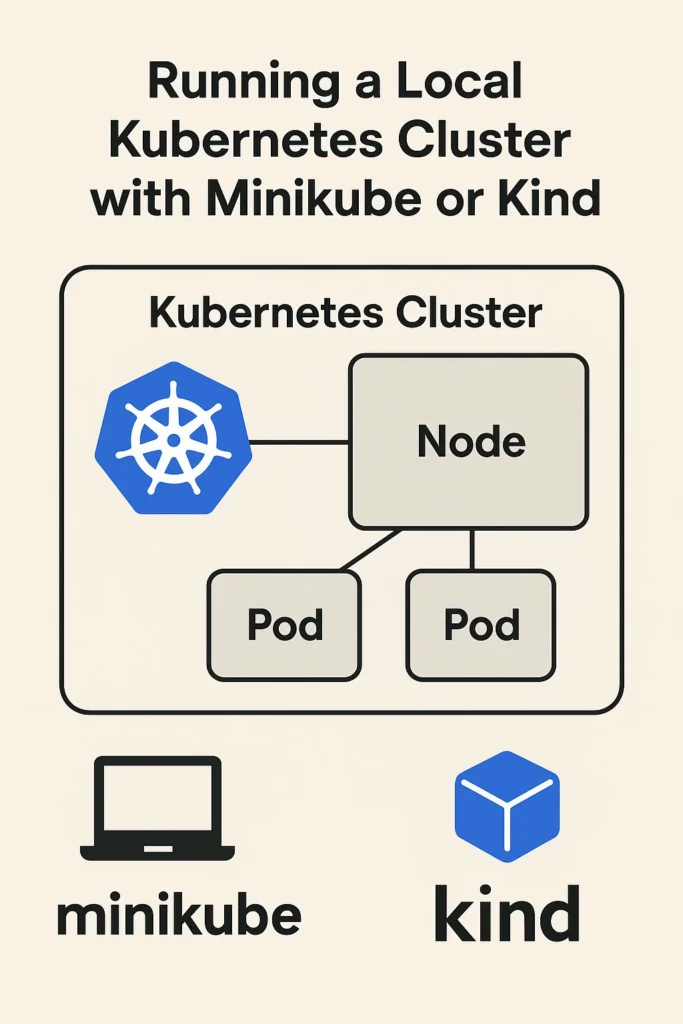
Before deploying to cloud-managed Kubernetes services, testing locally saves time, money, and frustration. Local clusters allow developers to experiment with configurations, learn Kubernetes concepts, and validate deployments without incurring cloud costs or waiting for provisioning. Minikube and Kind (Kubernetes in Docker) are the two most popular tools for running production-grade Kubernetes on your development machine. Both create fully functional clusters that support the same APIs and resources as cloud providers. In this comprehensive guide, you will learn how each tool works, understand when to choose one over the other, master advanced configurations for multi-node clusters and ingress, and build workflows that seamlessly transition from local development to production deployment.
Why Run Kubernetes Locally?
Running Kubernetes on your own machine offers significant advantages during development and learning.
Key Benefits
- Zero cost: No cloud bills during development and testing
- Fast iteration: Deploy and redeploy in seconds without network latency
- Safe experimentation: Break things freely without affecting production
- Full API access: Use the same kubectl commands and YAML manifests as production
- Offline development: Work without internet connectivity
- CI/CD testing: Validate deployments in pipelines before pushing to staging
- Learning environment: Understand Kubernetes concepts hands-on
Common Use Cases
- Testing Helm charts before deploying to production
- Developing microservices that need to interact with Kubernetes APIs
- Validating Kustomize overlays and configurations
- Learning Kubernetes networking, storage, and security concepts
- Running integration tests against real Kubernetes resources
Minikube: Comprehensive Setup
Minikube creates a single-node Kubernetes cluster that runs on your computer using various drivers including Docker, VirtualBox, HyperKit, and Hyper-V. It provides the most feature-complete local Kubernetes experience with built-in add-ons and a dashboard.
Installation
# macOS
brew install minikube

# Linux (binary download)
curl -LO https://storage.googleapis.com/minikube/releases/latest/minikube-linux-amd64
sudo install minikube-linux-amd64 /usr/local/bin/minikube

# Windows (with Chocolatey)
choco install minikube
Starting Your First Cluster
# Start with default settings (uses Docker driver)
minikube start

# Start with specific driver
minikube start --driver=docker

# Start with more resources
minikube start --cpus=4 --memory=8192 --disk-size=50g

# Start with specific Kubernetes version
minikube start --kubernetes-version=v1.28.0
Verifying the Cluster
# Check cluster status
minikube status

# View nodes
kubectl get nodes

# List all pods across namespaces
kubectl get pods -A

# Check cluster info
kubectl cluster-info
Accessing the Dashboard
Minikube includes the Kubernetes Dashboard as a built-in add-on:
# Enable and open the dashboard
minikube dashboard

# Or just get the URL
minikube dashboard --url
Essential Add-ons
Minikube supports many add-ons that extend functionality:
# List available add-ons
minikube addons list

# Enable ingress controller
minikube addons enable ingress

# Enable metrics server for resource monitoring
minikube addons enable metrics-server

# Enable local container registry
minikube addons enable registry

# Enable storage provisioner
minikube addons enable storage-provisioner

# Enable load balancer (metallb)
minikube addons enable metallb
Working with Local Docker Images
One common challenge is getting locally built Docker images into Minikube:
# Option 1: Point Docker CLI to Minikube's Docker daemon
eval $(minikube docker-env)
docker build -t my-app:latest .
# Now the image is available in Minikube without pushing to a registry

# Option 2: Load an existing image
minikube image load my-app:latest

# Option 3: Build directly in Minikube
minikube image build -t my-app:latest .
Port Forwarding and Services
# Forward a service port to localhost
kubectl port-forward svc/my-service 8080:80

# Get Minikube's IP for NodePort services
minikube ip

# Create a tunnel for LoadBalancer services
minikube tunnel

# Open a service in browser
minikube service my-service
Multi-Node Clusters
Minikube supports multi-node clusters for testing distributed scenarios:
# Start a cluster with 3 nodes
minikube start --nodes=3 --driver=docker

# Add nodes to existing cluster
minikube node add

# List nodes
minikube node list

# Delete a specific node
minikube node delete minikube-m03
Managing Multiple Clusters
# Create named profiles for different clusters
minikube start -p dev-cluster
minikube start -p staging-cluster

# List all profiles
minikube profile list

# Switch between profiles
minikube profile dev-cluster

# Stop a specific profile
minikube stop -p staging-cluster

# Delete a profile
minikube delete -p dev-cluster
Kind: Comprehensive Setup
Kind (Kubernetes in Docker) runs Kubernetes clusters using Docker containers as nodes. It was originally designed for testing Kubernetes itself and excels at fast startup times and CI/CD integration.
Installation
# macOS
brew install kind

# Linux (binary download)
curl -Lo ./kind https://kind.sigs.k8s.io/dl/v0.21.0/kind-linux-amd64
chmod +x ./kind
sudo mv ./kind /usr/local/bin/kind

# Windows (with Chocolatey)
choco install kind
Creating a Simple Cluster
# Create with default settings
kind create cluster

# Create with specific name
kind create cluster --name dev-cluster

# Create with specific Kubernetes version
kind create cluster --image kindest/node:v1.28.0
Multi-Node Cluster Configuration
Kind uses YAML configuration files for complex setups:
# kind-config.yaml
kind: Cluster
apiVersion: kind.x-k8s.io/v1alpha4
nodes:
  - role: control-plane
    kubeadmConfigPatches:
      - |
        kind: InitConfiguration
        nodeRegistration:
          kubeletExtraArgs:
            node-labels: "ingress-ready=true"
    extraPortMappings:
      - containerPort: 80
        hostPort: 80
        protocol: TCP
      - containerPort: 443
        hostPort: 443
        protocol: TCP
  - role: worker
  - role: worker
  - role: worker
# Create cluster from config
kind create cluster --config kind-config.yaml --name multi-nodeHigh Availability Cluster
Test HA configurations with multiple control plane nodes:
# kind-ha-config.yaml
kind: Cluster
apiVersion: kind.x-k8s.io/v1alpha4
nodes:
  - role: control-plane
  - role: control-plane
  - role: control-plane
  - role: worker
  - role: worker
Loading Docker Images
# Load a local image into Kind
kind load docker-image my-app:latest --name dev-cluster

# Load from an archive
kind load image-archive my-app.tar --name dev-cluster
Setting Up Ingress
Kind requires manual ingress controller installation:
# Install NGINX Ingress Controller
kubectl apply -f https://raw.githubusercontent.com/kubernetes/ingress-nginx/main/deploy/static/provider/kind/deploy.yaml

# Wait for controller to be ready
kubectl wait --namespace ingress-nginx \
  --for=condition=ready pod \
  --selector=app.kubernetes.io/component=controller \
  --timeout=90s
Managing Kind Clusters
# List all clusters
kind get clusters

# Get cluster info
kubectl cluster-info --context kind-dev-cluster

# Delete a cluster
kind delete cluster --name dev-cluster

# Delete all clusters
kind delete clusters --all

# Export kubeconfig
kind get kubeconfig --name dev-cluster > kubeconfig.yaml
Minikube vs Kind: Detailed Comparison
| Feature | Minikube | Kind |
|---|---|---|
| Architecture | VM or Docker container | Docker containers only |
| Startup Time | 30-60 seconds | 15-30 seconds |
| Resource Usage | Higher (VM overhead) | Lower (containers) |
| Multi-node | Supported | Excellent support |
| Built-in Dashboard | Yes | Manual installation |
| Add-ons | Many built-in | Manual setup |
| CI/CD | Works but slower | Designed for CI |
| LoadBalancer | minikube tunnel | metallb required |
| Persistent Volumes | Built-in provisioner | Basic support |
| GPU Support | Supported | Limited |
When to Choose Minikube
- Learning Kubernetes with visual dashboard
- Need built-in add-ons (metrics, ingress, registry)
- Working with persistent volumes extensively
- GPU workloads for ML development
- Want VM isolation for security testing
When to Choose Kind
- CI/CD pipeline testing
- Fast cluster creation and teardown
- Testing multi-node and HA configurations
- Resource-constrained development machines
- Integration testing in automated workflows
Deploying an Application
Here is a complete example deploying a sample application to either tool:
# deployment.yaml
apiVersion: apps/v1
kind: Deployment
metadata:
  name: hello-app
  labels:
    app: hello
spec:
  replicas: 3
  selector:
    matchLabels:
      app: hello
  template:
    metadata:
      labels:
        app: hello
    spec:
      containers:
        - name: hello
          image: gcr.io/google-samples/hello-app:1.0
          ports:
            - containerPort: 8080
          resources:
            requests:
              cpu: 100m
              memory: 128Mi
            limits:
              cpu: 200m
              memory: 256Mi
---
apiVersion: v1
kind: Service
metadata:
  name: hello-service
spec:
  selector:
    app: hello
  ports:
    - port: 80
      targetPort: 8080
  type: ClusterIP
---
apiVersion: networking.k8s.io/v1
kind: Ingress
metadata:
  name: hello-ingress
spec:
  rules:
    - host: hello.local
      http:
        paths:
          - path: /
            pathType: Prefix
            backend:
              service:
                name: hello-service
                port:
                  number: 80
# Deploy the application
kubectl apply -f deployment.yaml
# Check deployment status
kubectl get deployments
kubectl get pods
kubectl get services
kubectl get ingress
# Test with port-forward
kubectl port-forward svc/hello-service 8080:80
curl http://localhost:8080Common Mistakes to Avoid
Not Cleaning Up Clusters
Old clusters consume disk space and resources. Regularly delete unused clusters and use docker system prune to reclaim space.
Ignoring Resource Limits
Local clusters compete with your development tools for resources. Set appropriate CPU and memory limits to prevent system slowdowns.
Using :latest Image Tag
The :latest tag combined with imagePullPolicy: Always forces remote pulls. Use specific tags and imagePullPolicy: IfNotPresent for local images.
Forgetting kubectl Context
Multiple clusters mean multiple contexts. Always verify which cluster you are targeting before running commands.
# View current context
kubectl config current-context

# List all contexts
kubectl config get-contexts

# Switch context
kubectl config use-context minikube
Assuming Production Parity
Local clusters lack many production features like proper load balancers, network policies enforcement, and cloud provider integrations. Always test in staging environments before production.
Not Using Namespaces
Deploying everything to the default namespace creates clutter. Use namespaces to organize different applications and environments.
Best Practices
- Use profiles/named clusters: Separate clusters for different projects
- Version control manifests: Store YAML files in Git repositories
- Automate setup: Script cluster creation with required add-ons
- Match production versions: Use the same Kubernetes version as production
- Test Helm charts locally: Validate before deploying to remote clusters
- Use port-forward for debugging: Access internal services without exposing them
- Monitor resources: Enable metrics-server to track usage
CI/CD Integration
Kind is particularly well-suited for CI pipelines:
# .github/workflows/test.yml
name: Kubernetes Tests

on: [push, pull_request]

jobs:
  test:
    runs-on: ubuntu-latest
    steps:
      - uses: actions/checkout@v4

      - name: Create Kind cluster
        uses: helm/kind-action@v1
        with:
          cluster_name: test-cluster

      - name: Deploy application
        run: |
          kubectl apply -f k8s/
          kubectl wait --for=condition=ready pod -l app=myapp --timeout=120s

      - name: Run integration tests
        run: |
          kubectl port-forward svc/myapp 8080:80 &
          sleep 5
          curl -f http://localhost:8080/health

      - name: Cleanup
        if: always()
        run: kind delete cluster --name test-cluster
Conclusion
Running a local Kubernetes cluster is essential for any developer or DevOps engineer working with container orchestration. Minikube provides the most complete local experience with built-in dashboards, add-ons, and excellent documentation for learning. Kind excels at speed, CI/CD integration, and testing multi-node configurations. Both tools create real Kubernetes clusters that accept the same manifests, Helm charts, and kubectl commands you will use in production. Start with Minikube if you are learning and want visual tools, or choose Kind for automation and fast iteration. Once confident locally, transition to managed services like GKE, EKS, or AKS knowing your configurations are validated. For production deployment patterns, read Kubernetes 101: Deploying and Managing Containerised Apps. To containerize your applications, explore Using Docker for Local Development: Tips and Pitfalls. For official documentation, visit the Minikube documentation and Kind’s official site.