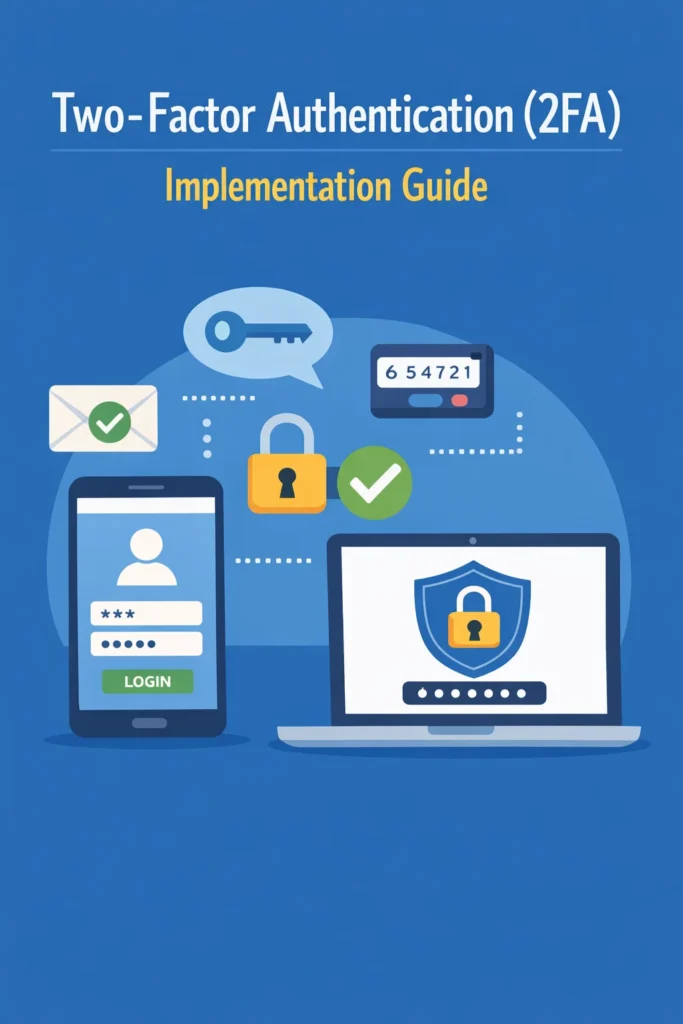
Passwords alone no longer provide adequate protection for user accounts. Credential stuffing attacks, phishing, and database breaches make single-factor authentication a liability for any application handling sensitive data. Two-factor authentication (2FA) adds a second verification layer that requires something the user knows (their password) and something they have (a device generating time-based codes). Even if an attacker obtains the password, they cannot access the account without the second factor.
This tutorial walks through implementing two-factor authentication using TOTP (Time-Based One-Time Passwords) — the standard behind apps like Google Authenticator, Authy, and 1Password. You will build the complete flow: generating secrets, displaying QR codes, verifying codes, handling backup codes, and securing the implementation for production use.
How TOTP-Based 2FA Works
TOTP generates a six-digit code that changes every 30 seconds. Both the server and the authenticator app share a secret key. They use this shared secret along with the current time to independently compute the same code. When the user enters the code, the server computes its own version and checks for a match.
The algorithm follows RFC 6238 and works in four steps:
- The server generates a random secret and shares it with the user (via QR code)
- The authenticator app stores the secret and computes a new code every 30 seconds
- When the user logs in, they enter the current code from their authenticator app
- The server computes the expected code using the same secret and current time, then compares
Because both sides use the same algorithm and the same clock, the codes match without any network communication between the authenticator app and your server. This makes TOTP work even when the user’s phone has no internet connection.
Setting Up the Backend (Node.js)
The implementation requires two npm packages: otpauth for TOTP operations and qrcode for generating QR code images.
npm install otpauth qrcode
Generating a TOTP Secret
When a user enables two-factor authentication, generate a unique secret for their account.
import { TOTP, Secret } from 'otpauth';

function generateTOTPSecret(userEmail) {
  const secret = new Secret({ size: 20 });

  const totp = new TOTP({
    issuer: 'MyApp',
    label: userEmail,
    algorithm: 'SHA1',
    digits: 6,
    period: 30,
    secret: secret,
  });

  return {
    secret: secret.base32,       // Store this in your database
    uri: totp.toString(),        // Use this to generate the QR code
  };
}
The secret.base32 value must be stored securely in your database, associated with the user’s account. Encrypt it at rest — if an attacker obtains the database, they should not be able to read TOTP secrets directly. The uri follows the otpauth:// format that authenticator apps recognize when scanned from a QR code.
Generating a QR Code
Convert the TOTP URI into a QR code image that the user scans with their authenticator app.
import QRCode from 'qrcode';

async function generateQRCode(totpUri) {
  // Returns a data URL suitable for an <img> tag
  return QRCode.toDataURL(totpUri);
}
Verifying a TOTP Code
When the user submits a code during login, verify it against the stored secret.
import { TOTP, Secret } from 'otpauth';

function verifyTOTPCode(storedSecret, userCode) {
  const totp = new TOTP({
    issuer: 'MyApp',
    algorithm: 'SHA1',
    digits: 6,
    period: 30,
    secret: Secret.fromBase32(storedSecret),
  });

  // delta allows for time drift (1 period before/after)
  const delta = totp.validate({ token: userCode, window: 1 });

  // delta is null if invalid, or a number (-1, 0, 1) indicating the time step
  return delta !== null;
}
The window: 1 parameter accepts codes from one period before and one period after the current time. This accounts for slight clock drift between the user’s device and your server. Without this tolerance, users with slightly inaccurate device clocks would get locked out.
Building the API Endpoints
The complete two-factor authentication flow requires four endpoints: initiate setup, confirm setup, verify during login, and disable 2FA.
Endpoint 1: Initiate 2FA Setup
import express from 'express';
import { TOTP, Secret } from 'otpauth';
import QRCode from 'qrcode';

const router = express.Router();

router.post('/api/2fa/setup', authenticate, async (req, res) => {
  const user = req.user;

  // Prevent re-enrollment if already enabled
  if (user.twoFactorEnabled) {
    return res.status(400).json({ error: '2FA is already enabled' });
  }

  const secret = new Secret({ size: 20 });
  const totp = new TOTP({
    issuer: 'MyApp',
    label: user.email,
    algorithm: 'SHA1',
    digits: 6,
    period: 30,
    secret: secret,
  });

  // Store the secret temporarily (not yet confirmed)
  await User.updateOne(
    { _id: user.id },
    { twoFactorSecret: encrypt(secret.base32), twoFactorPending: true }
  );

  const qrCodeDataUrl = await QRCode.toDataURL(totp.toString());

  res.json({
    qrCode: qrCodeDataUrl,
    manualEntry: secret.base32, // For users who can't scan QR codes
  });
});
Notice that the endpoint stores the secret as “pending” rather than immediately enabling 2FA. This prevents a scenario where the user generates a secret but never scans it, locking themselves out of their account.
Endpoint 2: Confirm 2FA Setup
The user scans the QR code and enters the first code to prove their authenticator app works correctly.
router.post('/api/2fa/confirm', authenticate, async (req, res) => {
  const { code } = req.body;
  const user = await User.findById(req.user.id);

  if (!user.twoFactorPending) {
    return res.status(400).json({ error: 'No pending 2FA setup' });
  }

  const secret = decrypt(user.twoFactorSecret);
  const isValid = verifyTOTPCode(secret, code);

  if (!isValid) {
    return res.status(400).json({ error: 'Invalid code. Scan the QR code and try again.' });
  }

  // Generate backup codes
  const backupCodes = generateBackupCodes(10);
  const hashedBackupCodes = await Promise.all(
    backupCodes.map(code => bcrypt.hash(code, 10))
  );

  await User.updateOne(
    { _id: user.id },
    {
      twoFactorEnabled: true,
      twoFactorPending: false,
      backupCodes: hashedBackupCodes,
    }
  );

  res.json({
    message: '2FA enabled successfully',
    backupCodes: backupCodes, // Show these ONCE — user must save them
  });
});
Endpoint 3: Verify During Login
Modify your login flow to check for 2FA after password verification.
router.post('/api/login', async (req, res) => {
  const { email, password, twoFactorCode } = req.body;

  const user = await User.findOne({ email });
  if (!user || !await bcrypt.compare(password, user.passwordHash)) {
    return res.status(401).json({ error: 'Invalid credentials' });
  }

  // If 2FA is enabled, require the code
  if (user.twoFactorEnabled) {
    if (!twoFactorCode) {
      return res.status(200).json({
        requiresTwoFactor: true,
        message: 'Enter your 2FA code',
      });
    }

    const secret = decrypt(user.twoFactorSecret);
    const isValid = verifyTOTPCode(secret, twoFactorCode);

    if (!isValid) {
      // Check backup codes as fallback
      const backupValid = await verifyBackupCode(user, twoFactorCode);
      if (!backupValid) {
        return res.status(401).json({ error: 'Invalid 2FA code' });
      }
    }
  }

  const token = generateTokens(user);
  res.json(token);
});
The login endpoint returns requiresTwoFactor: true when the password is correct but no 2FA code was provided. This tells the frontend to show the code input field. For teams building authentication flows with JWT, the 2FA check sits between password verification and token generation.
Endpoint 4: Disable 2FA
router.post('/api/2fa/disable', authenticate, async (req, res) => {
  const { password, twoFactorCode } = req.body;
  const user = await User.findById(req.user.id);

  // Require both password and 2FA code to disable
  if (!await bcrypt.compare(password, user.passwordHash)) {
    return res.status(401).json({ error: 'Invalid password' });
  }

  const secret = decrypt(user.twoFactorSecret);
  if (!verifyTOTPCode(secret, twoFactorCode)) {
    return res.status(401).json({ error: 'Invalid 2FA code' });
  }

  await User.updateOne(
    { _id: user.id },
    {
      twoFactorEnabled: false,
      twoFactorSecret: null,
      backupCodes: [],
    }
  );

  res.json({ message: '2FA disabled successfully' });
});
Always require re-authentication (password + current 2FA code) to disable two-factor authentication. Without this, an attacker with a stolen session token could disable 2FA silently.
Implementing Backup Codes
Backup codes provide account recovery when a user loses access to their authenticator app. Each code is single-use and should be generated during 2FA setup.
import crypto from 'crypto';
import bcrypt from 'bcrypt';

function generateBackupCodes(count = 10) {
  return Array.from({ length: count }, () =>
    crypto.randomBytes(4).toString('hex') // 8-character hex codes
  );
}

async function verifyBackupCode(user, code) {
  for (let i = 0; i < user.backupCodes.length; i++) {
    const match = await bcrypt.compare(code, user.backupCodes[i]);
    if (match) {
      // Remove the used backup code (single-use)
      user.backupCodes.splice(i, 1);
      await user.save();
      return true;
    }
  }
  return false;
}
Hash backup codes before storing them. If an attacker obtains the database, they should not be able to read backup codes directly. Additionally, remove each code after use to prevent reuse.
Frontend Integration (React)
The frontend handles three states: QR code display during setup, code input during login, and backup code display after confirmation.
2FA Setup Component
import { useState } from 'react';

function TwoFactorSetup() {
  const [qrCode, setQrCode] = useState(null);
  const [manualKey, setManualKey] = useState('');
  const [verificationCode, setVerificationCode] = useState('');
  const [backupCodes, setBackupCodes] = useState(null);
  const [error, setError] = useState('');

  async function initiateSetup() {
    const response = await fetch('/api/2fa/setup', { method: 'POST' });
    const data = await response.json();
    setQrCode(data.qrCode);
    setManualKey(data.manualEntry);
  }

  async function confirmSetup() {
    const response = await fetch('/api/2fa/confirm', {
      method: 'POST',
      headers: { 'Content-Type': 'application/json' },
      body: JSON.stringify({ code: verificationCode }),
    });

    if (response.ok) {
      const data = await response.json();
      setBackupCodes(data.backupCodes);
    } else {
      setError('Invalid code. Check your authenticator app and try again.');
    }
  }

  if (backupCodes) {
    return (
      <div>
        <h3>Save Your Backup Codes</h3>
        <p>Store these codes in a safe place. Each code can only be used once.</p>
        <ul>
          {backupCodes.map((code, i) => (
            <li key={i}><code>{code}</code></li>
          ))}
        </ul>
      </div>
    );
  }

  return (
    <div>
      <h3>Set Up Two-Factor Authentication</h3>
      {!qrCode ? (
        <button onClick={initiateSetup}>Enable 2FA</button>
      ) : (
        <div>
          <img src={qrCode} alt="Scan this QR code with your authenticator app" />
          <p>Or enter this key manually: <code>{manualKey}</code></p>
          <input
            type="text"
            inputMode="numeric"
            pattern="[0-9]*"
            maxLength={6}
            placeholder="Enter 6-digit code"
            value={verificationCode}
            onChange={(e) => setVerificationCode(e.target.value)}
          />
          {error && <p style={{ color: 'red' }}>{error}</p>}
          <button onClick={confirmSetup}>Verify and Enable</button>
        </div>
      )}
    </div>
  );
}
For teams building forms with React Hook Form and Zod validation, the verification code input integrates naturally into existing form patterns.
2FA Login Step
function LoginForm() {
  const [email, setEmail] = useState('');
  const [password, setPassword] = useState('');
  const [twoFactorCode, setTwoFactorCode] = useState('');
  const [requiresTwoFactor, setRequiresTwoFactor] = useState(false);

  async function handleLogin(e) {
    e.preventDefault();

    const response = await fetch('/api/login', {
      method: 'POST',
      headers: { 'Content-Type': 'application/json' },
      body: JSON.stringify({ email, password, twoFactorCode: twoFactorCode || undefined }),
    });

    const data = await response.json();

    if (data.requiresTwoFactor) {
      setRequiresTwoFactor(true);
      return;
    }

    if (response.ok) {
      // Store token and redirect
      localStorage.setItem('token', data.accessToken);
      window.location.href = '/dashboard';
    }
  }

  return (
    <form onSubmit={handleLogin}>
      {!requiresTwoFactor ? (
        <>
          <input type="email" value={email} onChange={(e) => setEmail(e.target.value)} placeholder="Email" />
          <input type="password" value={password} onChange={(e) => setPassword(e.target.value)} placeholder="Password" />
        </>
      ) : (
        <input
          type="text"
          inputMode="numeric"
          maxLength={6}
          value={twoFactorCode}
          onChange={(e) => setTwoFactorCode(e.target.value)}
          placeholder="Enter 2FA code or backup code"
          autoFocus
        />
      )}
      <button type="submit">{requiresTwoFactor ? 'Verify' : 'Log In'}</button>
    </form>
  );
}
Production Security Considerations
Encrypt TOTP Secrets at Rest
Store TOTP secrets with application-level encryption, not just database-level encryption. If an attacker gains read access to the database through SQL injection, application-level encryption still protects the secrets.
import crypto from 'crypto';

const ENCRYPTION_KEY = Buffer.from(process.env.ENCRYPTION_KEY, 'hex'); // 32 bytes
const IV_LENGTH = 16;

function encrypt(text) {
  const iv = crypto.randomBytes(IV_LENGTH);
  const cipher = crypto.createCipheriv('aes-256-gcm', ENCRYPTION_KEY, iv);
  let encrypted = cipher.update(text, 'utf8', 'hex');
  encrypted += cipher.final('hex');
  const authTag = cipher.getAuthTag().toString('hex');
  return `${iv.toString('hex')}:${authTag}:${encrypted}`;
}

function decrypt(encryptedText) {
  const [ivHex, authTagHex, encrypted] = encryptedText.split(':');
  const iv = Buffer.from(ivHex, 'hex');
  const authTag = Buffer.from(authTagHex, 'hex');
  const decipher = crypto.createDecipheriv('aes-256-gcm', ENCRYPTION_KEY, iv);
  decipher.setAuthTag(authTag);
  let decrypted = decipher.update(encrypted, 'hex', 'utf8');
  decrypted += decipher.final('utf8');
  return decrypted;
}
Rate Limit 2FA Verification
Apply strict rate limiting to the 2FA verification endpoint. Without it, an attacker who obtains the password can brute-force the six-digit code (1,000,000 combinations) in a relatively short time.
Prevent Code Replay
Track recently used TOTP codes to prevent replay attacks. If an attacker intercepts a valid code, they should not be able to reuse it.
// Store the last used code timestamp per user
async function verifyTOTPWithReplayProtection(user, code) {
  const isValid = verifyTOTPCode(decrypt(user.twoFactorSecret), code);

  if (!isValid) return false;

  const currentPeriod = Math.floor(Date.now() / 30000);
  if (user.lastUsedTOTPPeriod === currentPeriod) {
    return false; // Code already used in this time period
  }

  await User.updateOne({ _id: user.id }, { lastUsedTOTPPeriod: currentPeriod });
  return true;
}
Real-World Scenario: Adding 2FA to an Existing SaaS Product
A B2B SaaS platform with around 2,000 active users decides to add two-factor authentication after a customer requests it for compliance reasons. The team needs to implement 2FA without disrupting existing users who do not want to enable it.
They deploy the feature as opt-in, adding a “Security” tab to user settings. The setup flow generates a QR code, requires verification of the first code, and displays backup codes. During login, the server checks whether the user has 2FA enabled and prompts for the code only when needed.
The team initially makes 2FA optional for all users and mandatory for admin accounts. Within the first month, 15% of users voluntarily enable 2FA. After three months, they make 2FA mandatory for all users who access billing or customer data, based on role-based permissions. The phased rollout avoids the support burden of requiring every user to set up 2FA simultaneously.
During the rollout, the most common support ticket involves users who switch phones without transferring their authenticator app. Backup codes resolve most cases, but the team also adds an admin-initiated 2FA reset flow that requires identity verification through email confirmation before clearing a user’s 2FA settings.
When to Use Two-Factor Authentication
- Any application that handles sensitive user data (financial, health, personal information)
- Admin and privileged accounts should always require 2FA
- B2B applications where customers expect compliance with security standards (SOC 2, ISO 27001)
- Applications that have experienced or are targets for credential stuffing attacks
- Any system where the cost of a compromised account exceeds the friction of entering a six-digit code
When NOT to Use TOTP-Specifically
- For low-risk applications where email-based magic links provide sufficient second-factor verification
- When your user base lacks smartphones (consider hardware security keys or SMS as alternatives)
- As a replacement for strong passwords — 2FA supplements password security, it does not replace it
Common Mistakes with Two-Factor Authentication
- Storing TOTP secrets in plain text in the database instead of encrypting them at rest
- Not requiring re-authentication (password + 2FA code) to disable 2FA, allowing session-hijacking attackers to remove the protection silently
- Skipping the confirmation step during setup, which can lock users out if they never scan the QR code
- Not implementing backup codes, leaving users permanently locked out when they lose their authenticator device
- Allowing unlimited 2FA verification attempts without rate limiting, enabling brute-force attacks on the six-digit code
- Displaying backup codes only once but not emphasizing that users must save them immediately
- Not logging 2FA events (enable, disable, failed attempts) for security auditing
Completing the Two-Factor Authentication Flow
Two-factor authentication significantly strengthens account security when implemented correctly. The core TOTP implementation is straightforward — generate a secret, share it via QR code, and verify codes against the shared secret. The production considerations around it require more attention: encrypt secrets at rest, implement backup codes, rate-limit verification attempts, prevent code replay, and log all 2FA events.
Start with opt-in 2FA for all users and mandatory 2FA for privileged accounts. As your user base grows comfortable with the flow, expand the requirement to additional roles. Combined with strong password storage and proper session management, two-factor authentication makes credential-based attacks dramatically harder to execute.