Introduction
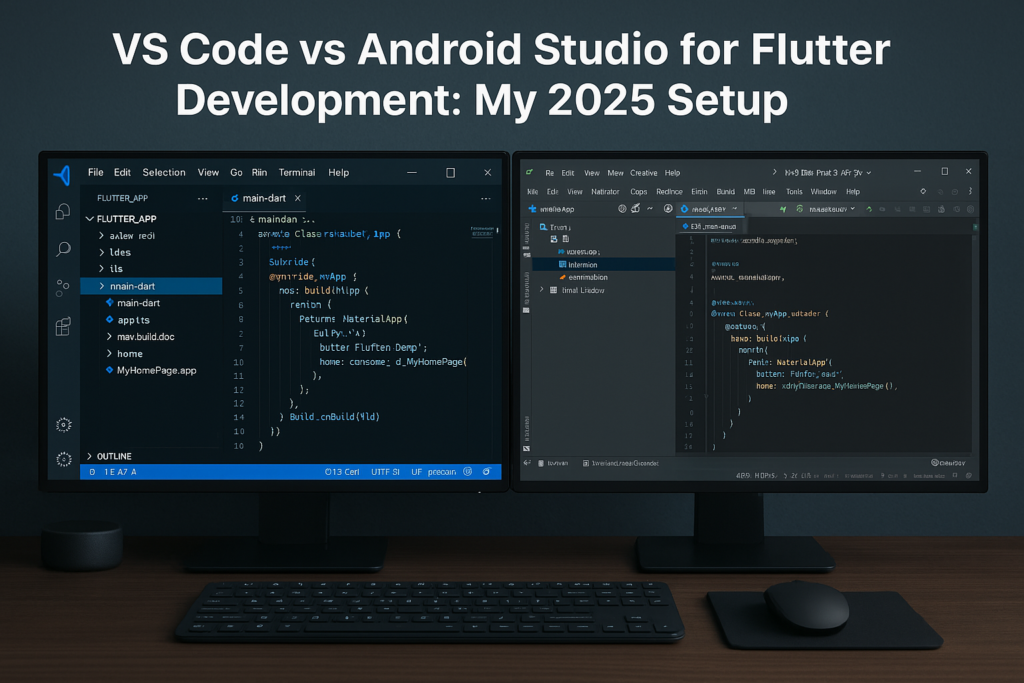
Choosing the right IDE can significantly impact your productivity as a Flutter developer. The tools you use daily affect how quickly you can iterate, debug issues, and ship features. In 2025, two of the most popular tools remain Visual Studio Code (VS Code) and Android Studio. Each has distinct strengths—VS Code offers speed and simplicity while Android Studio provides deeper integration with the Android ecosystem and powerful debugging tools. Your decision will depend on your workflow, hardware constraints, project requirements, and personal preferences. In this comprehensive comparison, I’ll walk you through the key differences, share my battle-tested setup, and help you decide which approach works best for your Flutter development needs.
VS Code: Lightweight and Speedy
VS Code is a favorite among many Flutter developers, and for good reason. Microsoft’s free, open-source editor has transformed how developers write code across all platforms and languages. For Flutter development, it provides an excellent balance of features and performance.
Advantages of VS Code
Performance: VS Code launches in seconds and remains responsive even with large projects open. It typically uses 300-500MB of RAM compared to Android Studio’s 2-4GB, making it ideal for developers with constrained hardware.
Simplicity: The clean interface focuses on what matters—your code. New developers can be productive within minutes, while advanced users can customize every aspect through settings and extensions.
Extension ecosystem: With over 40,000 extensions available, VS Code can be tailored to any workflow. The Flutter and Dart extensions are actively maintained and provide excellent language support.
Integrated terminal: The built-in terminal lets you run Flutter commands, Git operations, and shell scripts without leaving the editor—a workflow many developers prefer.
Cross-platform consistency: VS Code looks and behaves identically on Windows, macOS, and Linux, making it easy to maintain consistent workflows across different machines.
Limitations of VS Code
Manual setup required: Unlike Android Studio where Flutter tools come pre-integrated, VS Code requires installing and configuring extensions separately.
Limited visual tools: No built-in layout inspector or widget tree visualization—you’ll need to rely on Flutter DevTools running in a separate browser window.
Native debugging gaps: While Dart debugging is excellent, debugging platform-specific code (Kotlin/Swift) requires switching to platform-native tools.
Must-Have VS Code Extensions for Flutter
Here’s my carefully curated extension list for productive Flutter development:
// Essential Flutter extensions
Flutter                  // Core Flutter support
Dart                     // Dart language support
Awesome Flutter Snippets // Time-saving code snippets
Pubspec Assist           // Manage dependencies easily
Error Lens               // Inline error highlighting

// Productivity boosters
GitLens                  // Git history and blame
Bracket Pair Colorizer   // Visual bracket matching
Todo Tree                // Track TODOs across project
Flutter Widget Snippets  // Quick widget generation

// Code quality
Dart Data Class Generator // Generate data classes
Flutter Riverpod Snippets // If using Riverpod
Better Comments          // Organized comment styles
Recommended VS Code Settings for Flutter
// settings.json optimizations for Flutter
{
  "dart.previewFlutterUiGuides": true,
  "dart.previewFlutterUiGuidesCustomTracking": true,
  "editor.formatOnSave": true,
  "editor.codeActionsOnSave": {
    "source.fixAll": "explicit",
    "source.organizeImports": "explicit"
  },
  "dart.lineLength": 80,
  "dart.openDevTools": "flutter",
  "[dart]": {
    "editor.rulers": [80],
    "editor.selectionHighlight": false,
    "editor.suggestSelection": "first",
    "editor.tabCompletion": "onlySnippets",
    "editor.wordBasedSuggestions": "off"
  }
}
Android Studio: Full-Powered Development
Android Studio offers a comprehensive Flutter development experience built on JetBrains’ IntelliJ platform. It’s especially powerful if you’re building production Android apps alongside Flutter UI or need deep integration with Android-specific features.
Advantages of Android Studio
Deep Flutter integration: The Flutter and Dart plugins are deeply integrated, providing features like the Flutter Inspector, Layout Explorer, and Performance Profiler directly in the IDE.
Visual debugging tools: The Widget Inspector lets you visually explore your widget tree, inspect properties, and understand layout issues without leaving the IDE.
// Android Studio's Flutter Inspector reveals:
// - Widget tree hierarchy
// - Render object properties
// - Layout constraints and sizes
// - Repaint regions for performance analysis
Built-in AVD Manager: Create and manage Android emulators directly from the IDE. Cold boot, snapshot management, and device configurations are all easily accessible.
Superior refactoring: JetBrains’ refactoring tools are industry-leading. Rename symbols, extract widgets, wrap with builders, and restructure code with confidence that references will update correctly.
Native code debugging: When you need to debug Kotlin or Java code in your Android plugins, Android Studio provides seamless native debugging without switching tools.
Performance profiling: The built-in profiler shows CPU, memory, and network usage. The Flutter Performance view displays frame rendering times and helps identify jank.
Limitations of Android Studio
Resource intensive: Expect 2-4GB RAM usage minimum, with large projects pushing higher. Startup time is measured in tens of seconds rather than single digits.
Complexity: The interface exposes many features you may never use for Flutter development, which can be overwhelming for newcomers.
Update cycles: Being tied to the JetBrains release cycle means feature updates arrive less frequently than VS Code’s monthly releases.
Essential Android Studio Configuration
// Memory optimization in studio.vmoptions
-Xms512m
-Xmx4096m
-XX:+UseG1GC
-XX:MaxGCPauseMillis=200

// Useful keyboard shortcuts to memorize
Cmd/Ctrl + Shift + A    // Find any action
Cmd/Ctrl + B            // Go to definition
Cmd/Ctrl + Alt + L      // Format code
Cmd/Ctrl + Shift + R    // Flutter hot reload
Cmd/Ctrl + Shift + F5   // Flutter hot restart
Cmd/Ctrl + Alt + W      // Wrap with widget
Feature-by-Feature Comparison
| Feature | VS Code | Android Studio |
|---|---|---|
| Startup Time | 2-5 seconds | 20-45 seconds |
| RAM Usage | 300-500MB | 2-4GB |
| Hot Reload | Excellent | Excellent |
| Widget Inspector | Via DevTools (browser) | Built-in |
| Layout Explorer | Via DevTools | Built-in |
| Emulator Management | CLI commands | Built-in AVD Manager |
| Refactoring | Good | Excellent |
| Git Integration | GitLens extension | Built-in + plugins |
| Native Debugging | Limited | Full support |
| Extension Ecosystem | Massive (40,000+) | Moderate (plugins) |
| Learning Curve | Low | Moderate |
My Hybrid Setup in 2025
After years of switching back and forth, I’ve landed on a hybrid workflow that leverages the strengths of both tools:
VS Code for daily coding: I spend 90% of my development time in VS Code—writing widgets, implementing business logic, and managing state. Its speed and simplicity keep me focused on code.
Android Studio for specialized tasks: When I need to profile performance, debug layout issues visually, manage emulators, or work with native Android code, I switch to Android Studio.
// My typical workflow
1. Start emulator from Android Studio's AVD Manager
2. Open project in VS Code
3. Code and hot reload in VS Code
4. Switch to Android Studio for:
   - Performance profiling sessions
   - Complex layout debugging
   - Native plugin development
   - Gradle configuration issues
This gives me the best of both worlds: the speed and simplicity of VS Code for routine development, and Android Studio’s powerful tools when I need deeper analysis.
Which One Should You Use?
Here’s a decision framework based on common scenarios:
| Scenario | Recommendation |
|---|---|
| Limited RAM (8GB or less) | VS Code |
| Heavy Android native work | Android Studio |
| Rapid UI iteration | VS Code |
| Performance profiling needs | Android Studio |
| Multiple projects open | VS Code |
| Learning Flutter | VS Code (simpler) |
| Enterprise projects | Android Studio or Hybrid |
| Maximum flexibility | Hybrid approach |
Common Mistakes to Avoid
Fighting your tools: If you find yourself constantly frustrated with your IDE, try the other one. Productivity matters more than loyalty to a particular tool.
Skipping keyboard shortcuts: Both IDEs become significantly more powerful once you learn key shortcuts. Invest time in learning the shortcuts for your chosen editor.
Ignoring Flutter DevTools: Regardless of which IDE you use, Flutter DevTools is essential. Learn to use the Widget Inspector, Performance View, and Memory View.
Not configuring properly: Both tools benefit from customization. Take time to configure settings, install relevant extensions/plugins, and optimize for your workflow.
Conclusion
Whether you’re a beginner or a seasoned Flutter developer, the IDE you choose should support your flow—not slow it down. In 2025, both VS Code and Android Studio offer excellent experiences for Flutter development, but they serve different needs. VS Code excels at fast, focused coding sessions with minimal resource overhead. Android Studio provides deeper tooling for debugging, profiling, and native integration. Many productive developers, myself included, use both—leveraging VS Code for daily development and Android Studio for specialized tasks. Try them both, understand their strengths, and build the development stack that makes you most productive. For more Flutter development insights, explore our guides on Top Flutter Libraries for 2025 and Dart Language Features. You can also check the official Flutter DevTools documentation to master debugging regardless of which IDE you choose.