Introduction
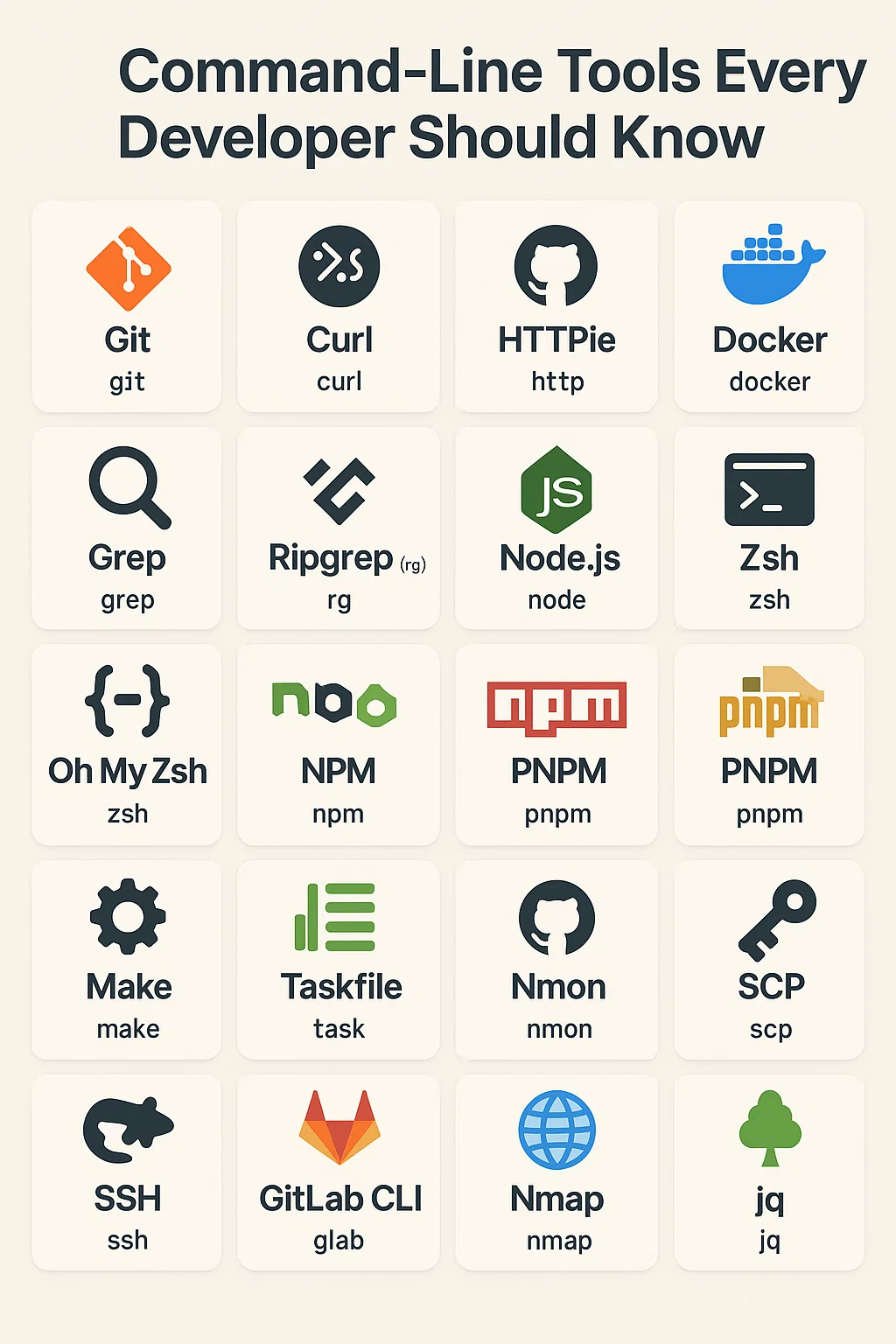
At first glance, the command line might seem intimidating. However, it remains one of the most powerful and versatile tools in a developer’s toolkit. Whether you’re a backend engineer, frontend developer, or DevOps professional, mastering the terminal gives you speed, control, and automation power that no graphical tool can match. In this guide, we’ll explore the most essential command-line tools every developer should know — from managing containers to debugging APIs — so you can code smarter and faster.
Git – Version Control Mastery
Few tools are as critical as Git. It powers version control, enabling teams to collaborate, track history, and roll back changes when things go wrong. Understanding Git is fundamental for every developer.
# Create and switch to a new feature branch
git checkout -b feature/new-ui

# Stage and commit changes with a descriptive message
git add src/components/
git commit -m "Add new UI components for dashboard"

# Push branch to remote
git push origin feature/new-ui

# Interactive rebase to clean up commits before merging
git rebase -i HEAD~3

# Stash work in progress when switching contexts
git stash push -m "WIP: user profile updates"
git stash pop
Pro Tip: Combine Git with GitLens in VS Code or automate pre-commit checks using Git Hooks. Set up useful aliases in your .gitconfig to speed up common operations.
Curl and HTTPie – Test APIs Effortlessly
Working with APIs is a daily task for developers, and Curl or HTTPie make it easy to test endpoints directly from your terminal. Curl is lightweight and scriptable, while HTTPie offers more readable output with syntax highlighting.
# Basic GET request with curl
curl https://api.example.com/users

# POST request with JSON body
curl -X POST https://api.example.com/users \
  -H "Content-Type: application/json" \
  -H "Authorization: Bearer $TOKEN" \
  -d '{"name": "John", "email": "john@example.com"}'

# HTTPie - cleaner syntax for the same operations
http GET https://api.example.com/users
http POST https://api.example.com/users name="John" email="john@example.com" \
  Authorization:"Bearer $TOKEN"

# Download file with progress
curl -O --progress-bar https://example.com/large-file.zip

# Follow redirects and show headers
curl -L -i https://example.com/redirect
These tools save time by eliminating the need for external clients like Postman. They integrate easily into automation scripts and CI/CD pipelines.
Docker – Container Management Simplified
Modern applications often rely on Docker to build, run, and isolate services. With just a few commands, you can replicate production environments locally and ensure consistent deployments.
# Build image from Dockerfile
docker build -t my-app:1.0.0 .

# Run container with port mapping and environment variables
docker run -d --name my-app \
  -p 8080:80 \
  -e NODE_ENV=production \
  -v $(pwd)/data:/app/data \
  my-app:1.0.0

# View logs in real-time
docker logs -f my-app

# Execute commands inside running container
docker exec -it my-app sh

# Docker Compose for multi-container applications
docker-compose up -d
docker-compose logs -f backend
docker-compose down --volumes
Pro Tip: Use Docker Compose to orchestrate multiple containers, such as your backend, frontend, and database. It’s faster and more maintainable than starting each container manually.
Grep and Ripgrep – Search Like a Pro
When you need to find something inside your codebase, grep and its modern counterpart ripgrep (rg) are invaluable. They let you search through large directories almost instantly.
# Search recursively with line numbers
grep -rn "TODO" src/

# Ripgrep - faster and respects .gitignore
rg "useEffect" --type js
rg "function.*async" --type ts -C 2

# Search with regex patterns
rg "import.*from ['\"]react['\"]" src/

# Exclude directories
rg "password" --glob '!node_modules' --glob '!*.log'

# Count matches per file
rg "console.log" --count

# Search and replace with sed
grep -rl "oldFunction" src/ | xargs sed -i 's/oldFunction/newFunction/g'
Instead of opening files manually, these tools let you pinpoint functions, configurations, or logs in seconds. Combine them with less or sort for advanced filtering.
Fzf – Fuzzy Finder Magic
If you frequently search your command history or files, Fzf is a time-saver. It provides interactive fuzzy searching, allowing you to jump between files, branches, or commands quickly.
# Search command history interactively
history | fzf

# Find and open files
vim $(fzf)

# Git branch switching with fuzzy search
git checkout $(git branch | fzf)

# Kill processes interactively
kill $(ps aux | fzf | awk '{print $2}')

# Preview files while searching
fzf --preview 'cat {}' --preview-window=right:50%
With Fzf, navigating through projects feels effortless, especially when dealing with large repositories or multi-service codebases.
Tmux – Terminal Powerhouse
When multitasking in the terminal, Tmux becomes essential. It lets you split panes, create detachable sessions, and reconnect remotely without losing progress.
# Create a new named session
tmux new -s dev

# Split window horizontally and vertically
# Ctrl+b then " (horizontal)
# Ctrl+b then % (vertical)

# Navigate between panes
# Ctrl+b then arrow keys

# Detach from session (keeps running)
# Ctrl+b then d

# List and reattach to sessions
tmux ls
tmux attach -t dev

# Create named windows
tmux new-window -n logs
tmux new-window -n server
You can work on several processes at once — running your backend in one pane and monitoring logs in another — without opening multiple terminal windows.
Zsh + Oh My Zsh – A Smarter Shell
If you’re still using Bash, consider switching to Zsh with Oh My Zsh. Together, they enhance your shell with intelligent autocompletion, syntax highlighting, and handy shortcuts.
# Install Oh My Zsh
sh -c "$(curl -fsSL https://raw.github.com/ohmyzsh/ohmyzsh/master/tools/install.sh)"

# Useful aliases in .zshrc
alias gs="git status"
alias gp="git pull"
alias gc="git commit -m"
alias dc="docker-compose"
alias k="kubectl"

# Enable plugins in .zshrc
plugins=(git docker kubectl npm fzf)

# Auto-suggestions and syntax highlighting
# brew install zsh-autosuggestions zsh-syntax-highlighting
Pro Tip: Install Powerlevel10k for a sleek and informative prompt showing Git branches, paths, and even Node versions.
Jq – JSON Processing Powerhouse
When working with APIs, jq lets you parse, filter, and transform JSON directly in the terminal.
# Pretty print JSON
curl -s https://api.example.com/users | jq .

# Extract specific fields
curl -s https://api.example.com/users | jq '.[] | {name, email}'

# Filter by condition
curl -s https://api.example.com/users | jq '.[] | select(.active == true)'

# Count items
curl -s https://api.example.com/users | jq 'length'

# Transform data structure
cat data.json | jq 'map({id: .user_id, fullName: "\(.first) \(.last)"})'

# Combine with other tools
curl -s https://api.example.com/users | jq -r '.[] | .email' | sort | uniq
Parsing and visualizing data directly from the command line saves time and reduces context switching between tools.
Make and Task – Automating Workflows
Instead of typing the same commands repeatedly, automate them using Makefiles or Taskfiles. They provide a consistent workflow across your team.
# Makefile
.PHONY: build test deploy clean

build:
	npm run build

test:
	npm run test

lint:
	npm run lint

dev:
	docker-compose up -d
	npm run dev

deploy: test build
	./scripts/deploy.sh

clean:
	rm -rf dist node_modules
	docker-compose down -v
Once defined, anyone on your team can build or test the project with a single command. Onboarding and CI/CD integration become much smoother.
Htop and Btop – System Monitoring
When debugging performance issues, htop and btop give you real-time insight into CPU, memory, and processes.
# Interactive process viewer
htop

# Modern alternative with better visuals
btop

# Filter processes by name
htop -p $(pgrep -d',' node)

# Monitor specific resources
watch -n 1 'free -h'
watch -n 1 'df -h'
Unlike the standard top command, these tools provide color-coded, interactive views, making it easier to spot bottlenecks.
SSH and SCP – Remote Access Essentials
To work on servers securely, SSH and SCP are indispensable.
# Connect to remote server
ssh user@server.example.com

# SSH with specific key
ssh -i ~/.ssh/my_key user@server.example.com

# Port forwarding (access remote service locally)
ssh -L 3000:localhost:3000 user@server.example.com

# Copy files to remote server
scp app.zip user@server:/home/user/

# Copy directory recursively
scp -r ./dist user@server:/var/www/app/

# Use rsync for better performance
rsync -avz --progress ./dist/ user@server:/var/www/app/

# SSH config for shortcuts (~/.ssh/config)
# Host prod
#   HostName server.example.com
#   User deploy
#   IdentityFile ~/.ssh/prod_key
These commands make remote development possible without relying on third-party tools. They form the backbone of automated deployment scripts.
GitHub CLI and GitLab CLI – Repo Management
Both GitHub and GitLab offer powerful CLIs for managing repositories, issues, and pipelines.
# GitHub CLI
gh auth login
gh repo clone owner/repo
gh pr create --title "Feature: Add user auth" --body "Implements JWT authentication"
gh pr list --state open
gh pr merge 123
gh issue create --title "Bug: Login fails" --label bug

# GitLab CLI
glab auth login
glab mr create --title "Feature: Add caching"
glab pipeline view
glab ci status
You can merge pull requests, check build status, or review issues directly from your terminal. This reduces context switching and keeps you focused.
Network Debugging Tools
For network diagnostics, several tools help you test connectivity and debug issues.
# Check if port is open
nc -zv example.com 443

# Scan ports
nmap -p 80,443,8080 example.com

# DNS lookup
dig example.com
dig +short example.com A

# Trace network route
traceroute example.com

# Monitor network traffic
sudo tcpdump -i any port 8080

# Test bandwidth
iperf3 -c speedtest.example.com
These tools are especially valuable when debugging microservices, ensuring APIs and databases communicate correctly.
Real-World Workflow Example
Consider a developer starting their day. They open a tmux session with three panes: one for their editor, one for the development server, and one for logs. They use fzf to quickly switch to the feature branch they were working on yesterday.
After making changes, they run the test suite using their Makefile shortcut. When tests pass, they use the GitHub CLI to create a pull request without leaving the terminal. While waiting for CI, they use ripgrep to find all usages of a function they want to refactor.
When debugging a production issue, they SSH into the server, use htop to identify high CPU usage, then use grep to search logs for error patterns. The entire workflow happens in the terminal, maintaining focus and efficiency.
When to Use Command-Line Tools
Command-line tools excel when speed and automation matter. Scripting repetitive tasks saves hours over time. Remote server access requires terminal proficiency. CI/CD pipelines are built on command-line operations. Debugging production issues often requires direct terminal access.
When NOT to Rely Solely on CLI
Visual diff tools may be clearer for complex merge conflicts. GUI database clients make data exploration easier. Design work and visual debugging benefit from graphical tools. New team members may onboard faster with visual interfaces initially.
Conclusion
Mastering these command-line tools will significantly improve your productivity and confidence as a developer. They help you automate repetitive tasks, debug faster, and control your environment with precision. These skills translate across all programming stacks — from web to cloud to embedded systems. Start small, pick two or three tools, and gradually integrate them into your daily workflow. Over time, you’ll realize that the terminal isn’t intimidating at all — it’s empowering.
To take your automation further, read “Using Git Hooks to Automate Code Quality Checks.” For CI/CD integration, see “CI/CD for Node.js Projects Using GitHub Actions.” Explore the Linux Command Reference for additional tips. With these tools in your arsenal, you’ll work faster and more efficiently than ever before.


