Introduction
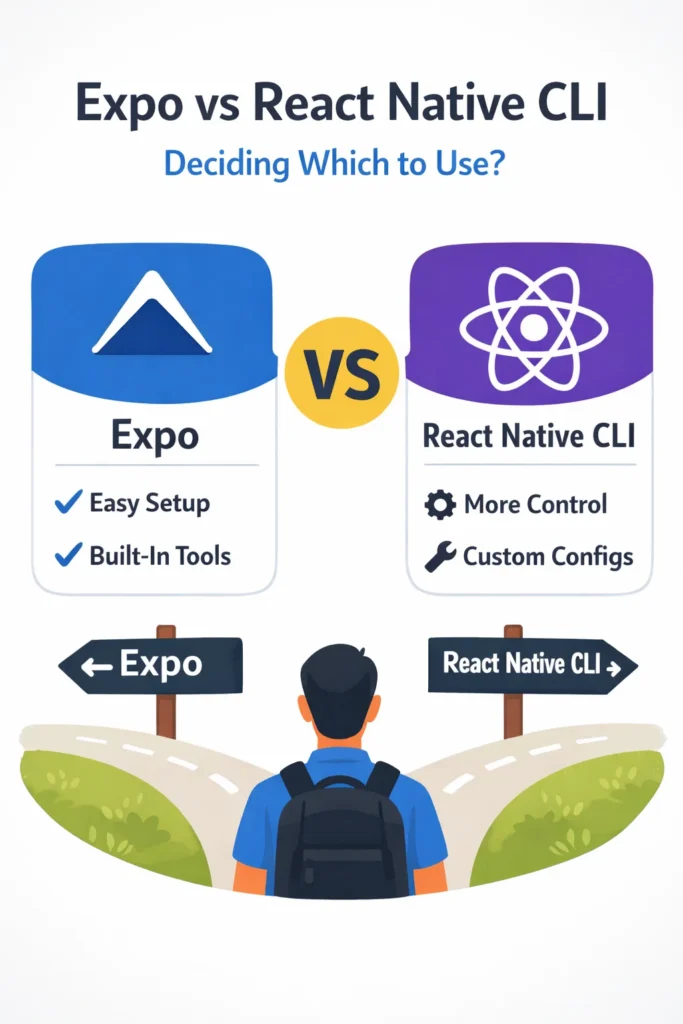
Choosing the right setup for a React Native project has a major impact on development speed, flexibility, and long-term maintenance. Two popular options dominate the ecosystem: Expo and React Native CLI. While both are built on React Native, they follow different philosophies and workflows. Expo prioritizes developer experience and rapid iteration, while React Native CLI offers complete control over native code. In this guide, you will learn how Expo and React Native CLI differ, what each tool does best, and how to decide which one fits your project requirements. By the end, you will be able to make a confident and informed choice that aligns with your team’s capabilities and your app’s technical needs.
Understanding the Core Difference
At a high level, the difference comes down to abstraction versus control. Expo provides a managed environment with many features built in, shielding developers from native complexity. React Native CLI offers full control over native code, requiring developers to manage Android and iOS projects directly.
Expo focuses on speed and simplicity, making it possible to build and test apps without ever opening Xcode or Android Studio. React Native CLI focuses on flexibility and customization, enabling deep integration with native SDKs and custom native modules. Because of this fundamental difference, the best choice depends on how much control your project actually needs.
What Is Expo?
Expo is a platform and set of tools that simplify React Native development. It abstracts much of the native configuration and provides ready-to-use APIs for common mobile features.
Key Features of Expo
Expo offers zero or minimal native setup, allowing developers to start coding immediately. Built-in APIs cover camera, media library, sensors, notifications, and dozens of other features. The Expo Go app enables instant testing on physical devices without building native binaries. Over-the-air updates let you push JavaScript changes without going through app store review. Simple configuration through app.json or app.config.js keeps project settings centralized and readable.
// Creating a new Expo project
npx create-expo-app MyApp
cd MyApp
npx expo start

// Using Expo APIs
import * as Camera from 'expo-camera';
import * as Location from 'expo-location';
import * as Notifications from 'expo-notifications';

async function requestPermissions() {
  const { status: cameraStatus } = await Camera.requestCameraPermissionsAsync();
  const { status: locationStatus } = await Location.requestForegroundPermissionsAsync();

  return cameraStatus === 'granted' && locationStatus === 'granted';
}
As a result, Expo is often chosen for rapid development, prototyping, and projects where native customization is minimal.
What Is React Native CLI?
React Native CLI is the official toolchain provided by the React Native team. It gives developers direct access to native Android and iOS projects, with full control over build configuration and native dependencies.
Key Features of React Native CLI
React Native CLI provides full access to native code in both android/ and ios/ directories. There are no platform limitations imposed by tooling. Custom native modules integrate directly without restrictions. Greater control over build configuration enables advanced optimizations. The approach is ideal for complex features requiring native SDK integration.
// Creating a new React Native CLI project
npx react-native init MyApp
cd MyApp

// Running on iOS (requires Xcode)
npx react-native run-ios

// Running on Android (requires Android Studio)
npx react-native run-android

// Project structure includes native directories
// MyApp/
//   ├── android/       <- Full Android project
//   ├── ios/           <- Full iOS project
//   ├── src/
//   └── package.json
Because of this control, many large-scale apps and enterprise projects rely on React Native CLI.
Development Experience Comparison
The day-to-day development experience differs significantly between the two approaches.
Expo Development Flow
With Expo, you can start coding without installing Android Studio or Xcode. The Expo Go app runs your project instantly on physical devices. Hot reload works out of the box with fast refresh. There are fewer configuration files to manage, and most updates happen through simple commands.
// Typical Expo development workflow
// 1. Start development server
npx expo start

// 2. Scan QR code with Expo Go app
// 3. Edit code and see changes instantly

// app.json configuration
{
  "expo": {
    "name": "MyApp",
    "slug": "my-app",
    "version": "1.0.0",
    "orientation": "portrait",
    "icon": "./assets/icon.png",
    "splash": {
      "image": "./assets/splash.png",
      "resizeMode": "contain",
      "backgroundColor": "#ffffff"
    },
    "ios": {
      "bundleIdentifier": "com.example.myapp"
    },
    "android": {
      "package": "com.example.myapp"
    }
  }
}
This makes Expo especially friendly for beginners and teams without native mobile experience.
React Native CLI Development Flow
React Native CLI requires Android Studio and Xcode for building and running apps. Manual setup for native dependencies involves linking libraries and modifying native files. The initial setup takes longer, but developers gain more control over native builds and can debug native code directly.
// React Native CLI workflow with native module
// 1. Install a library with native code
npm install react-native-ble-plx

// 2. For iOS, install pods
cd ios && pod install && cd ..

// 3. Modify native files if needed
// ios/MyApp/Info.plist - add Bluetooth permissions
// android/app/src/main/AndroidManifest.xml - add permissions

// 4. Build and run
npx react-native run-ios
npx react-native run-android
Although setup takes longer, the flexibility to modify native code directly is essential for many projects.
Access to Native APIs
Native API access is often the deciding factor when choosing between Expo and React Native CLI.
Expo Native Access
Expo provides access only to APIs included in the Expo SDK. Custom native code requires using Expo's development builds or ejecting to a bare workflow. Most common features like camera, location, notifications, and file system are well-supported.
// Expo SDK covers most common use cases
import * as FileSystem from 'expo-file-system';
import * as SecureStore from 'expo-secure-store';
import * as ImagePicker from 'expo-image-picker';

// Store sensitive data securely
await SecureStore.setItemAsync('authToken', token);

// Pick image from library
const result = await ImagePicker.launchImageLibraryAsync({
  mediaTypes: ImagePicker.MediaTypeOptions.Images,
  allowsEditing: true,
  quality: 1,
});

// Download file
const downloadResult = await FileSystem.downloadAsync(
  'https://example.com/file.pdf',
  FileSystem.documentDirectory + 'file.pdf'
);
React Native CLI Native Access
React Native CLI provides full access to all native APIs. Custom native modules are straightforward to implement. No restrictions are imposed by tooling, allowing integration with any native SDK.
// Custom native module example (iOS - Swift)
// ios/MyApp/CustomModule.swift
import Foundation

@objc(CustomModule)
class CustomModule: NSObject {
  @objc
  func doSomethingNative(_ value: String, resolver: @escaping RCTPromiseResolveBlock, rejecter: @escaping RCTPromiseRejectBlock) {
    // Access any iOS API here
    let result = processNatively(value)
    resolver(result)
  }

  @objc
  static func requiresMainQueueSetup() -> Bool {
    return false
  }
}

// Usage in JavaScript
import { NativeModules } from 'react-native';
const { CustomModule } = NativeModules;

const result = await CustomModule.doSomethingNative('input');
If your app needs deep native integration, such as Bluetooth Low Energy, custom video processing, or proprietary SDKs, CLI is usually the safer choice.
Expo Development Builds and EAS
Expo has evolved significantly with development builds and EAS (Expo Application Services), bridging the gap between managed and bare workflows.
// Creating a development build with custom native code
npx expo install expo-dev-client

// Build for iOS simulator
eas build --profile development --platform ios

// Build for Android emulator
eas build --profile development --platform android

// eas.json configuration
{
  "build": {
    "development": {
      "developmentClient": true,
      "distribution": "internal"
    },
    "preview": {
      "distribution": "internal"
    },
    "production": {}
  }
}
Development builds allow you to include custom native modules while still benefiting from Expo's tooling. This hybrid approach has made Expo viable for more complex projects.
Performance Considerations
Both options use the same React Native runtime, so core performance is similar. Expo adds minimal overhead through its SDK wrapper. Native-heavy apps benefit from CLI's direct control over optimization. Performance bottlenecks usually come from app logic, not the tooling choice.
// Performance optimization applies to both
import { useMemo, useCallback, memo } from 'react';
// Memoize expensive computations
const expensiveResult = useMemo(() => {
return heavyCalculation(data);
}, [data]);
// Prevent unnecessary re-renders
const MemoizedComponent = memo(({ item }) => {
return In practice, performance differences between Expo and CLI are rarely the deciding factor for most applications.
Updates and Maintenance
Expo includes powerful update tools that can significantly reduce deployment friction.
Expo Over-the-Air Updates
// expo-updates enables OTA updates
import * as Updates from 'expo-updates';

async function checkForUpdates() {
  try {
    const update = await Updates.checkForUpdateAsync();

    if (update.isAvailable) {
      await Updates.fetchUpdateAsync();
      await Updates.reloadAsync();
    }
  } catch (error) {
    console.log('Error checking for updates:', error);
  }
}

// Push updates without app store submission
// eas update --branch production --message "Bug fix"
Push JavaScript updates over the air, fix bugs without app store resubmission, and iterate quickly on features.
React Native CLI Updates
With React Native CLI, app store submission is required for most updates. This provides more predictable release cycles and easier compliance with strict enterprise policies. Third-party solutions like CodePush can add OTA capabilities.
CI/CD and Build Pipelines
Build and deployment workflows differ significantly between the approaches.
Expo with EAS Build
// EAS Build handles cloud-based builds
// eas.json
{
  "cli": {
    "version": ">= 3.0.0"
  },
  "build": {
    "production": {
      "ios": {
        "resourceClass": "m-medium"
      },
      "android": {
        "buildType": "apk"
      }
    }
  },
  "submit": {
    "production": {
      "ios": {
        "appleId": "your@email.com",
        "ascAppId": "1234567890"
      }
    }
  }
}

// Build and submit
eas build --platform all --profile production
eas submit --platform ios --profile production
React Native CLI with Custom CI
# GitHub Actions workflow for React Native CLI
name: Build iOS
on:
  push:
    branches: [main]

jobs:
  build:
    runs-on: macos-latest
    steps:
      - uses: actions/checkout@v3

      - name: Setup Node.js
        uses: actions/setup-node@v3
        with:
          node-version: '18'

      - name: Install dependencies
        run: npm ci

      - name: Install pods
        run: cd ios && pod install

      - name: Build iOS
        run: |
          xcodebuild -workspace ios/MyApp.xcworkspace \
            -scheme MyApp \
            -configuration Release \
            -archivePath build/MyApp.xcarchive \
            archive
Larger teams often prefer the flexibility of custom CI/CD pipelines with React Native CLI.
Real-World Production Scenario
Consider a startup building a consumer mobile app with a team of three JavaScript developers and no native mobile experience. The app needs camera access, push notifications, and offline storage.
Starting with Expo, the team ships an MVP in six weeks. All required features are available in the Expo SDK. Development happens entirely in JavaScript with fast iteration using Expo Go. OTA updates let them fix bugs same-day without waiting for app store review.
Six months later, the product requires integration with a Bluetooth hardware device. The team uses Expo's development builds with a custom native module, avoiding a full migration to bare React Native. This hybrid approach provides native access while keeping most Expo benefits.
In contrast, a fintech company building a banking app chooses React Native CLI from the start. Regulatory requirements demand specific security SDKs and certificate pinning implementations. The team includes iOS and Android specialists who maintain native code alongside JavaScript developers. Full native control ensures compliance and enables deep platform integration.
When to Choose Expo
Expo is a strong choice for fast project setup and prototyping. Teams with minimal native experience benefit from its abstractions. Small to medium apps with standard features work well. Rapid iteration with OTA updates is a priority. Limited native customization is acceptable.
When to Choose React Native CLI
React Native CLI is better when you need full native control and custom native modules. Complex integrations with proprietary SDKs require direct native access. Enterprise requirements often demand complete build control. Long-term architectural freedom matters for apps expected to grow significantly.
Common Mistakes
Choosing Expo without checking API limits leads to discovering missing features mid-project. Always verify that required native capabilities exist in the Expo SDK before committing.
Choosing CLI too early adds unnecessary complexity. Small projects and MVPs may not need full native control. Start simple and migrate if needed.
Ignoring future requirements causes painful migrations. Consider the app's growth trajectory and potential native needs when making the initial decision.
Conclusion
Choosing between Expo and React Native CLI depends on your project goals, team experience, and long-term requirements. Expo accelerates development by removing native complexity and providing powerful tooling like EAS Build and OTA updates. React Native CLI provides full control for advanced use cases requiring deep native integration. With Expo's development builds, the line between these approaches has blurred, making it possible to start with Expo and add native code when needed.
If you are building offline-capable mobile systems, read "Building Offline-Ready React Native Apps with Redux Persist." For user engagement strategies, see "Push Notifications in React Native with Firebase Cloud Messaging." You can also explore the Expo documentation and the React Native CLI documentation. By understanding these trade-offs and your project's specific needs, you can choose the setup that keeps your React Native project productive and scalable.


2 Comments