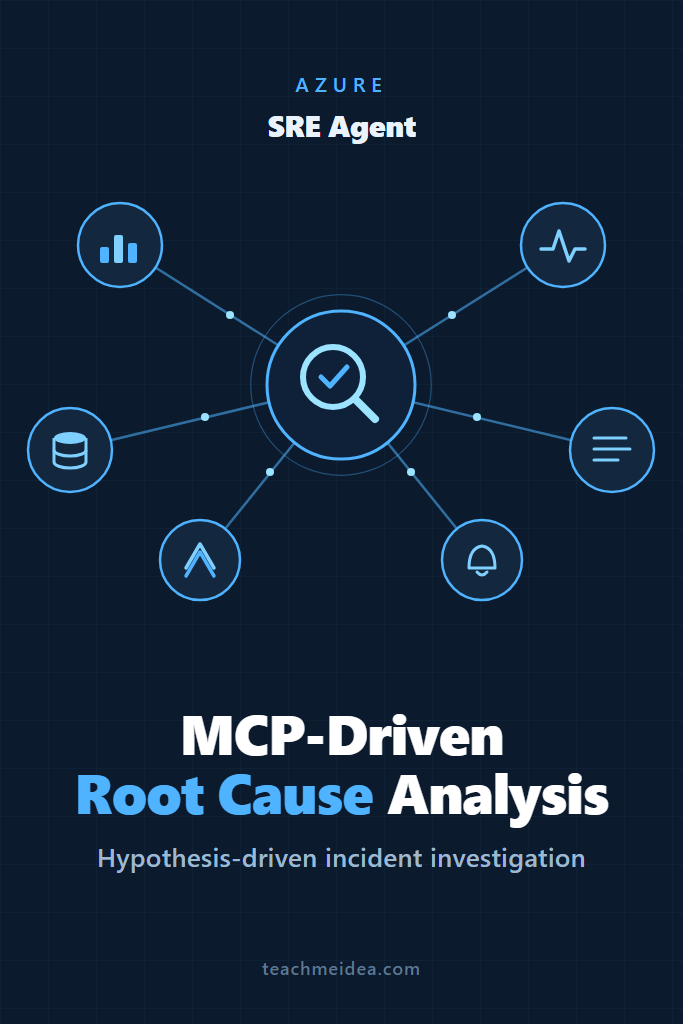
If you have ever stared at five browser tabs at 2 a.m., copying timestamps between Azure Monitor, Dynatrace, and Splunk while a payment endpoint throws 500s, this guide is for you. The Azure SRE Agent is Microsoft’s always-on reliability service that investigates incidents the way a senior engineer would: it forms hypotheses, tests them against evidence, and explains its conclusions. More importantly, it reaches beyond Azure’s own telemetry by connecting to external observability platforms over the Model Context Protocol (MCP).
This tutorial walks through how the Azure SRE Agent performs root cause analysis, how to wire up MCP connectors so it can query third-party tools, and when to trust it to act on its own. By the end, you will understand the investigation loop well enough to configure it for a real production estate and judge where it fits in your incident response process.
What Is the Azure SRE Agent?
The Azure SRE Agent is an AI-powered operations teammate that connects to your Azure resources, telemetry, runbooks, and incident tools, then continuously monitors health and investigates alerts. Instead of searching logs blindly, it correlates signals across logs, metrics, configuration state, and recent deployments to identify true root causes rather than surface symptoms, with explainable findings you can audit.
Microsoft moved the agent to general availability after a sizable internal rollout. According to Microsoft’s GA announcement, the company deployed more than 1,300 agents internally, mitigated over 35,000 incidents, and reported saving 20,000-plus engineering hours. Treat those as vendor figures rather than independent benchmarks, but they do signal that the product is past the experimental stage.
The agent sits in the same emerging category as cloud-native incident responders on other platforms. If you have read our walkthrough on the AWS DevOps Agent for autonomous incident response, the mental model transfers directly: an autonomous loop of detect, investigate, diagnose, and act, gated by how much authority you grant it.
Why Log Searching Is Not Investigation
Most debugging starts with “show me the errors.” You query a log store, scroll through results, copy a timestamp, switch tools, and run another query. That is not investigation. You are manually correlating data and holding the reasoning in your head, which is exactly the part that does not scale.
The real difficulty is knowing what questions to ask, which tools to check, and how to connect the dots across logs, metrics, deployments, and past incidents. That mental model usually lives in the heads of a few senior engineers, and they cannot join every call. As a result, newer team members spend hours on problems veterans solve in minutes, because the reasoning was never written down anywhere.
The Azure SRE Agent attacks this gap directly. Rather than handing you raw data to interpret, it interprets the data for you. It decides which metrics matter for this specific incident, correlates them with other evidence, and tells you why a given signal is relevant. That shift from data retrieval to reasoning is the whole point.
How Root Cause Analysis Works in the Azure SRE Agent
The agent investigates in a structured loop that mirrors how an experienced SRE thinks. Understanding these four steps helps you read its output and trust (or challenge) its conclusions.
- Gathers context. It queries Application Insights, Azure Monitor, deployment history, activity logs, and resource properties to build a picture of the system state.
- Forms hypotheses. Based on the evidence pattern, it generates concrete theories about what went wrong.
- Validates each one. It tests hypotheses systematically against data, ruling out false leads instead of latching onto the first plausible cause.
- Explains the conclusion. It presents the full reasoning trail with supporting evidence and citations, so the finding is auditable rather than a black-box verdict.
This hypothesis-driven approach differs from the three things teams usually rely on. Where log searching returns data for you to interpret, the agent reasons about the problem itself. Static dashboards show the same panels every time, whereas the agent adapts to the specific incident in front of it. A script, meanwhile, runs identical steps on every run, but the agent reasons about what is different this time and adjusts its investigation accordingly.
A Worked Example: Database Timeout Investigation
Consider a common symptom: “500 errors on the /api/orders endpoint.” Here is the kind of evidence chain the agent produces, drawn from Microsoft’s root cause analysis documentation:
HYPOTHESIS 1: Recent deployment broke something
├─ Checked: Last deployment was 3 days ago
├─ Evidence: Error rate stable until 30 minutes ago
└─ Result: INVALIDATED

HYPOTHESIS 2: Database overloaded
├─ Checked: Azure SQL metrics (CPU, DTU, connections)
├─ Evidence: DTU at 98%, query duration 4x normal
├─ Traced: SELECT * FROM orders WHERE... taking 8.2s
└─ Result: VALIDATED

ROOT CAUSE: Orders table missing index on customer_id column.
Query plan shows full table scan on 2.1M rows.

RECOMMENDED ACTION: Add index on orders.customer_id
Similar fix applied in INC-2341 (3 weeks ago)
Notice three things in that output. First, the agent explicitly invalidated a tempting hypothesis (the recent deployment) before settling on the real cause. Second, it cited concrete metrics rather than vague suspicion. Third, it recalled a similar past incident, INC-2341, and the fix that worked then. That memory of prior incidents is one of the agent’s most valuable behaviors, because institutional knowledge usually evaporates between on-call rotations.
Connecting External Tools Over MCP
Built-in Azure telemetry only sees Azure. In practice, your observability stack probably spans several platforms: Dynatrace for traces, Azure Monitor for infrastructure, Splunk for logs, and perhaps a Kusto cluster for business metrics. During an incident, engineers manually bridge those silos, copying operation IDs between tabs and translating timestamps across three query languages. That stitching commonly eats 15 to 30 minutes before diagnosis even begins.
The Model Context Protocol solves this. MCP is an open standard for connecting AI systems to external tools and data sources, and the Azure SRE Agent uses it to query third-party observability platforms in the same investigation as Azure’s native signals. If MCP is new to you, our explainer on the MCP protocol covers the fundamentals, and the guide on adding MCP servers to Claude Code shows the connection pattern in a developer tool.
The key mechanism is tool registration. The agent registers the tools exposed by every connected MCP server alongside its built-in Azure tools. During an investigation, it selects the right tool based on what it is investigating, not based on which platform the tool came from. When a platform adds new capabilities to its MCP server, the agent discovers them automatically, so you avoid the maintenance treadmill of point-to-point integrations.
What You Can Connect
Microsoft’s external observability guide lists the supported data sources. The table below summarizes what each connector unlocks.
| Data source | Connector | What the agent can do |
|---|---|---|
| Application Insights, Log Analytics | Built-in | Query Azure telemetry with no setup |
| Azure Data Explorer (Kusto) | Kusto connector | Query business metrics and custom telemetry |
| Dynatrace | MCP server | Query logs and metrics via DQL, find error patterns |
| Datadog | MCP server | Query metrics, APM traces, logs, and monitors |
| Splunk | MCP server | Search logs, run saved searches, query events |
| New Relic | MCP server | Query metrics, traces, and performance data |
| Elasticsearch | MCP server | Search and query Elasticsearch indices |
| Any tool with MCP | MCP server | Whatever tools that platform’s MCP server exposes |
Wiring Up a Connector
You connect any MCP-capable observability platform the same way, which is the practical payoff of an open protocol. The high-level steps are consistent across vendors:
- Obtain the platform’s MCP server endpoint. Vendors such as Dynatrace, Datadog, and Splunk publish their own MCP servers; check the vendor’s documentation for the current endpoint URL.
- Provision credentials. Create a scoped API token or service account on the external platform with read access to the telemetry the agent should query. Grant the narrowest scope that still covers your incident data.
- Register the connector in the SRE Agent. Add the MCP server URL and credentials through the agent’s connector configuration, following Microsoft’s MCP connector tutorial.
- Verify tool discovery. After registration, confirm the agent lists the platform’s tools. From that point, it can call them during any investigation without further prompting.
Because the agent discovers tools dynamically, you do not write glue code per platform. Adding a new observability source is a configuration change, not a development project.
A Cross-Platform Investigation in Practice
The value of MCP connectors shows up when Azure metrics alone lie. Take the symptom “Orders are failing but Azure metrics look fine.” A built-in-only investigation stops at “Azure is healthy, case closed.” With external connectors, the agent keeps pulling the thread:
- Azure infrastructure (built-in): App Service healthy, Azure SQL DTU low, Application Insights shows no application-layer exceptions.
- Dynatrace (via MCP): Queries 5xx errors with DQL and finds payment-service p99 latency at 12 seconds against a 200 ms baseline, isolated to the latest deployment revision.
- Kusto (via connector): A KQL query over
OrderEventsreturns 847 failures with reasonPaymentGatewayTimeout. - Correlation: “Azure infrastructure is healthy. The 5xx spike in Dynatrace correlates with deployment of revision 0000039. The 847
PaymentGatewayTimeoutfailures in your Kusto order data confirm the impact. Root cause: bad deployment.”
Without the external signals, that investigation would have closed prematurely. The agent’s ability to follow a failure across infrastructure, application, and business metrics in one thread is precisely what manual cross-tool correlation struggles to do under incident pressure.
Run Modes: Review Versus Autonomous
How much the Azure SRE Agent does on its own depends on the run mode you configure, and this choice deserves careful thought. The agent supports two operating modes that trade speed for control.
In Review mode, the agent investigates and diagnoses, then proposes a fix and waits for human approval before acting. You get the speed of automated diagnosis without surrendering the decision to change production. This is the right default for most teams adopting the tool.
In Autonomous mode, the agent investigates and acts independently, which can include code fixes and container restarts based on the response plan you defined. The payoff is faster mean time to recovery for well-understood incident classes. The risk is that an incorrect diagnosis turns into an incorrect action on live systems.
Response plans bridge the two. A response plan defines what the agent does when a specific type of incident arrives, with rules keyed on severity, title patterns, or other criteria. A sensible adoption path is to run everything in Review mode first, then promote only narrow, high-confidence incident types (such as a known memory-leak restart) to autonomous handling once you trust the agent’s judgment on them.
By default, Azure Monitor alerts act as the agent’s incident management platform. A scanner polls Azure Monitor every minute for new alerts, and a background service syncs historical alert data from the past 29 days into the analytics dashboard. If you already run alerting through Azure Monitor (see our primer on CloudWatch logging, metrics, and alarms for the equivalent AWS mindset), the agent slots into an existing signal source rather than demanding a new one.
When to Use the Azure SRE Agent
- Your workloads run primarily on Azure, where the built-in connectors give immediate value with no setup.
- Your observability data is scattered across multiple platforms and manual correlation dominates your incident timelines.
- On-call engineers repeatedly solve similar incidents, so the agent’s incident memory can capture and reapply that knowledge.
- You want explainable, auditable investigations rather than opaque “the AI says restart it” recommendations.
- Your team is comfortable starting in Review mode and tightening automation gradually.
When NOT to Use the Azure SRE Agent
- Your estate runs mostly outside Azure, where the built-in telemetry advantage largely disappears and other tools may fit better.
- You lack basic observability hygiene; the agent reasons over the signals you already collect, so sparse telemetry yields shallow conclusions.
- Regulatory or change-control constraints forbid automated production changes, which limits the agent to Review mode only (still useful, but a smaller win).
- You need a single pane of glass for cost or capacity planning rather than incident diagnosis, which is outside the agent’s purpose.
Common Mistakes with the Azure SRE Agent
- Jumping straight to Autonomous mode for all incident types instead of earning trust on narrow, well-understood cases first.
- Granting MCP connector credentials broad write scopes when read-only access to telemetry is all the agent needs.
- Treating the agent’s findings as infallible; the hypothesis trail exists so you can verify the evidence, not skip reading it.
- Skipping the knowledge base and source-control connections, which deprive the agent of the context that sharpens its hypotheses.
- Assuming external tools work without MCP setup; the agent only sees Dynatrace, Splunk, or Datadog after you register their connectors.
Strengthening the Agent’s Investigations
Root cause analysis works automatically with Azure’s built-in tools, but a few enhancements deepen its reasoning. Connecting source control enables error-to-code correlation and semantic code search, so the agent can point at the commit that likely introduced a fault. Uploading a knowledge base gives it documented context for hypothesis generation, which is especially valuable for domain-specific failure modes. Setting up the Kusto connector surfaces business metrics, letting the agent confirm customer impact rather than only infrastructure symptoms.
These additions compound. The more context the agent has about your code, your past incidents, and your business signals, the closer its investigations get to what your best engineer would conclude. If you are designing agentic systems more broadly, our guide on building AI agents with tools, planning, and execution explains the underlying loop the SRE Agent implements. And for the observability foundation it depends on, the walkthrough on monitoring and logging microservices with Prometheus and Grafana covers the metrics discipline that makes any AI investigator effective.
A Realistic Adoption Scenario
Picture a mid-sized engineering organization running a dozen microservices on Azure, with Dynatrace for distributed tracing and a Kusto cluster for order analytics. Before adopting the agent, a typical Sev-2 began with an on-call engineer opening three or four dashboards, translating between KQL and DQL, and burning the first half hour just assembling context. Cross-team escalations were common because no single engineer held the full picture.
After connecting Dynatrace and Kusto over MCP and running the agent in Review mode, the first-insight time on those incidents typically collapses to minutes, because the agent queries every platform in parallel and presents a single correlated thread. The trade-off worth naming: the team still reviews and approves each proposed action, and they deliberately keep autonomous handling restricted to a couple of well-rehearsed incident types. That caution is the feature, not a limitation, during the trust-building phase.
Conclusion
The Azure SRE Agent reframes incident response from manual log searching into hypothesis-driven investigation, and its MCP connectors let it reason across Azure and external observability tools in a single thread. Start by running it in Review mode against your existing Azure Monitor alerts, connect your highest-value external tool over MCP, and read its evidence trails closely before granting any autonomy. As you build confidence, promote only narrow, well-understood incident types to autonomous handling.
The next practical step is to wire up one MCP connector for the observability platform you check most during incidents, then compare the agent’s correlated findings against your own investigation on the next live alert. For the broader pattern behind tools like this, read our walkthrough on the AWS DevOps Agent for autonomous incident response to see how the same detect-investigate-act loop plays out on another cloud.