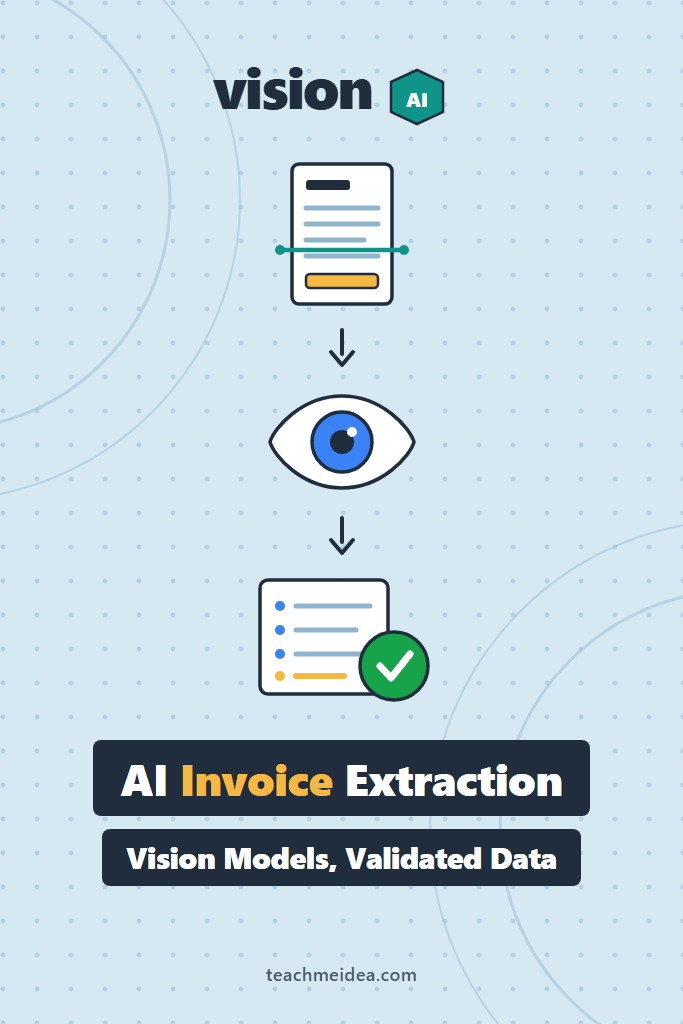
If you have ever tried to automate accounts payable, you already know the problem: every vendor sends a differently shaped invoice, and template-based extraction breaks the moment someone changes their letterhead. This guide walks through a complete AI invoice processing project built on vision models, from PDF ingestion to validated JSON to a human review queue. Along the way, you will see why the model is the easy part and the validator is the part that actually keeps your finance team from filing bad numbers.
This post is for backend and platform engineers who are comfortable with Python and REST APIs but have not shipped a document extraction pipeline before. By the end, you will have a working service that accepts an invoice, returns structured line items, reconciles the arithmetic, and flags anything it is not sure about. Notably, the same architecture transfers to receipts, purchase orders, and shipping manifests with only schema changes.
What Is AI Invoice Processing?
AI invoice processing uses a multimodal model to read an invoice image or PDF and return structured fields — vendor, invoice number, dates, line items, tax, and total — without per-vendor templates. Unlike traditional OCR, which returns raw text and coordinates, a vision model returns the data already interpreted and mapped to your schema.
That distinction matters more than it sounds. OCR tells you the string “1,240.00” appears at coordinates (412, 830). A vision model tells you that string is the subtotal, that the currency is EUR, and that it belongs to the third of five line items. Consequently, the messy part of the old pipeline — writing rules that turn positions into meaning — mostly disappears.
Why Vision Models Beat Traditional OCR for Invoices
Classic document pipelines chained an OCR engine to a rules layer or a trained layout model. That worked, but it required per-vendor tuning and degraded badly on scans, rotations, and unfamiliar layouts. Vision models collapse those stages into one call.
| Capability | OCR + rules | Layout ML model | Vision model |
|---|---|---|---|
| New vendor layout | Needs a new template | Needs retraining | Works zero-shot |
| Handwritten annotations | Poor | Poor | Usually readable |
| Multi-page line items | Manual stitching | Manual stitching | Handled in one prompt |
| Setup time | Days per vendor | Weeks of labeling | Hours |
| Output shape | Text plus boxes | Labeled boxes | Your JSON schema |
| Arithmetic checking | External | External | Still external |
Notice the last row. No approach validates itself. Therefore, the validator you write in Step 4 is not optional polish — it is the component that makes the rest trustworthy. If you want a broader grounding in what these models can and cannot read, our guide to image analysis with vision models covers the perception limits in more depth.
What You’ll Build: Pipeline Architecture
The service has five stages, each of which fails independently and reports why:
- Ingest — accept a PDF or image, normalize it to page images at a sane resolution.
- Extract — send the pages to a vision model with a strict JSON schema attached.
- Validate — reconcile line items against the subtotal, tax, and total.
- Route — auto-approve clean extractions, queue everything else for a human.
- Serve — expose the whole thing behind a single FastAPI endpoint.
Think of it as a funnel with a trapdoor. Most invoices fall straight through to auto-approval. The rest drop into review with a specific reason attached, rather than a vague confidence score nobody can act on.
Prerequisites
You need Python 3.11 or newer, an OpenAI API key with vision access, and the following packages:
pip install openai pydantic pymupdf fastapi uvicorn python-multipart
pymupdf handles PDF rasterization without a system-level Poppler install, which keeps your Docker image smaller. Additionally, set your key in the environment rather than in code:
export OPENAI_API_KEY="sk-..."
Step 1: Define the Invoice Schema Before You Prompt
Write the schema first. This inverts how most people start, but it pays off immediately: the schema becomes your prompt, your validator, and your database contract all at once.
# schema.py
from datetime import date
from decimal import Decimal
from typing import Literal
from pydantic import BaseModel, Field

class LineItem(BaseModel):
    description: str = Field(description="Product or service description as printed")
    quantity: Decimal = Field(description="Units billed; use 1 if not stated")
    unit_price: Decimal = Field(description="Price per unit before tax")
    line_total: Decimal = Field(description="Extended amount for this line")

class Invoice(BaseModel):
    vendor_name: str
    vendor_tax_id: str | None = Field(
        default=None,
        description="VAT/GST/EIN number if printed; null if absent",
    )
    invoice_number: str
    issue_date: date
    due_date: date | None = None
    currency: Literal["USD", "EUR", "GBP", "CAD", "AUD"]
    line_items: list[LineItem]
    subtotal: Decimal
    tax_amount: Decimal
    total: Decimal
Three decisions in that file are worth explaining, because each one prevents a specific class of production bug.
Decimal, not float. Invoice arithmetic is exact-money arithmetic. A float subtotal of 1240.0000000000002 will fail your reconciliation check for no real reason and send a perfectly good invoice to human review.
Explicit None on optional fields. If you leave vendor_tax_id required, the model will invent one when the invoice lacks it. Making absence a legal answer is the cheapest hallucination defense available.
A Literal for currency. Constraining the enum stops the model from returning “€”, “eur”, and “Euro” across three different invoices, which would otherwise become a normalization job downstream.
Step 2: Turn PDFs Into Model-Ready Images
Most invoices arrive as PDFs, and most PDFs are either digital-native or scanned. Rasterize both to images so a single code path handles them.
# ingest.py
import base64
import fitz  # PyMuPDF

MAX_PAGES = 10
RENDER_DPI = 150

def pdf_to_page_images(pdf_bytes: bytes) -> list[str]:
    """Rasterize a PDF into base64-encoded PNG pages.

    150 DPI is the practical floor for reliable small-print reading.
    Going higher inflates token cost with little accuracy gain.
    """
    pages: list[str] = []
    with fitz.open(stream=pdf_bytes, filetype="pdf") as doc:
        if doc.page_count > MAX_PAGES:
            raise ValueError(
                f"Invoice has {doc.page_count} pages; limit is {MAX_PAGES}. "
                "Split it or route to manual entry."
            )
        for page in doc:
            pixmap = page.get_pixmap(dpi=RENDER_DPI)
            pages.append(base64.b64encode(pixmap.tobytes("png")).decode())
    return pages
Why 150 DPI: vision models downscale large images internally before tokenizing them, so a 600 DPI render often costs several times more tokens while resolving no additional detail. In practice, 150 DPI reads standard 8pt invoice print reliably, and 200 DPI is the setting to try if a particular vendor’s fine print gives you trouble.
Why the page cap: a runaway 400-page PDF will otherwise burn a large chunk of your monthly budget in a single request. Fail fast instead. For a fuller treatment of keeping spend predictable, see our guide to token counting and budget management in LLM apps.
Step 3: Extract Structured Data From the Invoice
Now the actual extraction. The key move here is attaching the schema to the request rather than describing it in prose, so the model cannot return a shape your parser has to guess at.
# extract.py
import json
from openai import OpenAI, APIError
from schema import Invoice
from ingest import pdf_to_page_images

client = OpenAI()

SYSTEM_PROMPT = """You extract structured data from invoices.

Rules:
- Transcribe values exactly as printed. Do not compute or correct anything.
- If a field is not present on the document, return null rather than guessing.
- Include every line item across all pages, in document order.
- Report amounts as numbers without currency symbols or thousands separators.
"""

def extract_invoice(pdf_bytes: bytes) -> Invoice:
    pages = pdf_to_page_images(pdf_bytes)

    content: list[dict] = [
        {"type": "text", "text": "Extract this invoice. It has "
                                 f"{len(pages)} page(s), given in order."}
    ]
    for page_b64 in pages:
        content.append({
            "type": "image_url",
            "image_url": {"url": f"data:image/png;base64,{page_b64}"},
        })

    try:
        response = client.chat.completions.create(
            model="gpt-5",
            messages=[
                {"role": "system", "content": SYSTEM_PROMPT},
                {"role": "user", "content": content},
            ],
            response_format={
                "type": "json_schema",
                "json_schema": {
                    "name": "invoice",
                    "strict": True,
                    "schema": Invoice.model_json_schema(),
                },
            },
        )
    except APIError as exc:
        raise RuntimeError(f"Extraction call failed: {exc}") from exc

    return Invoice.model_validate_json(response.choices[0].message.content)
Why “do not compute or correct anything” is in the system prompt: without that instruction, models helpfully fix invoices. If the printed subtotal is wrong, the model will quietly return the corrected figure — which destroys your ability to detect that the document itself has an error. You want transcription, not accounting.
Why strict: True matters: strict schema mode forces the response to conform to your JSON Schema at the decoding level rather than through prompt persuasion. As a result, model_validate_json becomes a formality instead of a coin flip. Our walkthrough of OpenAI structured outputs covers the schema constraints in detail, and if you prefer a library that wraps this pattern with retries built in, Instructor with Pydantic is the usual choice.
A note on providers: the same request shape works with Anthropic’s claude-opus-5 or Google’s Gemini models — you swap the client and the image block format, but the schema, the system prompt, and everything downstream stay identical. Keeping the extraction function as the only provider-aware code in your pipeline makes that swap a one-file change.
Step 4: Validate the Extraction Against Arithmetic
Here is the part that turns a demo into a system. An invoice is a self-checking document: the line items should sum to the subtotal, and the subtotal plus tax should equal the total. When those checks pass, you have strong evidence the extraction is correct — far stronger than any confidence score the model reports about itself.
# validate.py
from dataclasses import dataclass
from decimal import Decimal
from schema import Invoice

TOLERANCE = Decimal("0.02")  # absorbs per-line rounding on large invoices

@dataclass
class ValidationResult:
    passed: bool
    issues: list[str]

def validate_invoice(invoice: Invoice) -> ValidationResult:
    issues: list[str] = []

    # 1. Do the line items sum to the printed subtotal?
    computed_subtotal = sum(
        (item.line_total for item in invoice.line_items), Decimal("0")
    )
    if abs(computed_subtotal - invoice.subtotal) > TOLERANCE:
        issues.append(
            f"Line items sum to {computed_subtotal}, "
            f"but subtotal reads {invoice.subtotal}"
        )

    # 2. Does each line's quantity x unit price match its extended amount?
    for index, item in enumerate(invoice.line_items, start=1):
        expected = item.quantity * item.unit_price
        if abs(expected - item.line_total) > TOLERANCE:
            issues.append(
                f"Line {index} ({item.description[:40]}): "
                f"{item.quantity} x {item.unit_price} = {expected}, "
                f"but line total reads {item.line_total}"
            )

    # 3. Does subtotal + tax equal the total?
    if abs((invoice.subtotal + invoice.tax_amount) - invoice.total) > TOLERANCE:
        issues.append(
            f"Subtotal {invoice.subtotal} + tax {invoice.tax_amount} "
            f"!= total {invoice.total}"
        )

    # 4. Sanity checks that catch transcription slips.
    if invoice.total <= 0:
        issues.append(f"Total is {invoice.total}, which is not a valid charge")
    if invoice.due_date and invoice.due_date < invoice.issue_date:
        issues.append("Due date precedes issue date")
    if not invoice.line_items:
        issues.append("No line items extracted")

    return ValidationResult(passed=not issues, issues=issues)
Why this works so well: a model that misreads “1,240.00” as “1,246.00” produces an invoice whose numbers no longer reconcile. The error becomes visible without you knowing the correct answer in advance. Essentially, you are using the document’s own internal redundancy as a free ground truth signal.
Why the tolerance is small but non-zero: vendors round each line independently, so a 40-line invoice can legitimately drift a cent or two from the naive sum. A two-cent tolerance absorbs that. Anything wider starts hiding real errors, so resist the urge to loosen it when a noisy vendor annoys you — fix the vendor-specific issue instead.
Step 5: Route Low-Confidence Invoices to Human Review
Validation gives you a binary signal, but not every failure deserves the same treatment. Route by severity so your reviewers see the urgent items first.
# route.py
from enum import Enum
from decimal import Decimal
from schema import Invoice
from validate import ValidationResult

class Disposition(str, Enum):
    AUTO_APPROVE = "auto_approve"
    REVIEW = "review"
    URGENT_REVIEW = "urgent_review"

HIGH_VALUE_THRESHOLD = Decimal("10000")

def route(invoice: Invoice, result: ValidationResult) -> Disposition:
    """Decide where an extracted invoice goes next.

    High-value invoices always get eyes on them, even when the
    arithmetic is clean — the cost of a wrong six-figure payment
    dwarfs the cost of a two-minute review.
    """
    if not result.passed:
        return Disposition.URGENT_REVIEW
    if invoice.total >= HIGH_VALUE_THRESHOLD:
        return Disposition.REVIEW
    if invoice.vendor_tax_id is None:
        return Disposition.REVIEW
    return Disposition.AUTO_APPROVE
The dollar threshold deserves a comment. Extraction accuracy does not vary with invoice size, but consequences do. Therefore, gating high-value invoices behind review is a business decision rather than a technical one, and finance should own the number.
Step 6: Expose the Pipeline as an API
Wire the stages together behind one endpoint. Keep the handler thin so each stage stays independently testable.
# main.py
import logging
from fastapi import FastAPI, UploadFile, File, HTTPException
from extract import extract_invoice
from validate import validate_invoice
from route import route

app = FastAPI(title="Invoice Extraction Service")
logger = logging.getLogger(__name__)

MAX_UPLOAD_BYTES = 20 * 1024 * 1024  # 20 MB

@app.post("/invoices/extract")
async def extract_endpoint(file: UploadFile = File(...)):
    payload = await file.read()

    if len(payload) > MAX_UPLOAD_BYTES:
        raise HTTPException(413, "File exceeds 20 MB limit")
    if not payload.startswith(b"%PDF"):
        raise HTTPException(400, "Only PDF uploads are accepted")

    try:
        invoice = extract_invoice(payload)
    except ValueError as exc:          # page limit, bad PDF structure
        raise HTTPException(422, str(exc)) from exc
    except RuntimeError as exc:        # upstream model failure
        logger.exception("Extraction failed for %s", file.filename)
        raise HTTPException(502, "Extraction service unavailable") from exc

    result = validate_invoice(invoice)
    disposition = route(invoice, result)

    logger.info(
        "Processed %s: vendor=%s total=%s disposition=%s issues=%d",
        file.filename, invoice.vendor_name, invoice.total,
        disposition.value, len(result.issues),
    )

    return {
        "disposition": disposition.value,
        "validation_issues": result.issues,
        "invoice": invoice.model_dump(mode="json"),
    }
Run it locally:
uvicorn main:app --reload

# Then, from another terminal:
curl -X POST http://localhost:8000/invoices/extract \
  -F "file=@sample-invoice.pdf"
A clean invoice returns "disposition": "auto_approve" with an empty validation_issues array. A misread one returns urgent_review plus the exact arithmetic that failed, which is precisely what a reviewer needs to fix it in seconds instead of minutes.
One production addition before you ship: the extraction call needs retry handling. Vision requests are large, and transient rate limits and timeouts are ordinary rather than exceptional. Our guide to LLM rate limiting and retry strategies covers the backoff patterns that belong around extract_invoice.
A Realistic Failure: The Multi-Page Invoice That Silently Lost Line Items
Consider a mid-sized logistics company running this pipeline over a few thousand invoices a month, mostly from a stable roster of carriers. Everything runs cleanly for weeks. Then one carrier switches to a format where line items continue onto page two under a repeated header, and a handful of invoices per week start landing in urgent review with the same complaint: line items sum to less than the printed subtotal.
The extraction was not hallucinating. It was truncating. The model treated the repeated header on page two as the start of a separate document and stopped collecting rows at the page boundary. Critically, the arithmetic check caught every single one — no bad payment left the system — but the review queue grew, and someone had to re-key the missing lines by hand.
The fix in cases like this is usually one of two things. Either you make the multi-page relationship explicit in the prompt, as the "It has N page(s), given in order" line in Step 3 does, or you extract page by page and merge the line-item arrays in code. The second approach costs more calls but removes the ambiguity entirely, and it is the safer default once a meaningful share of your volume runs past a single page.
The broader lesson is worth internalizing. The failure was silent at the model layer and loud at the validation layer. Without Step 4, this would have shown up months later as a vendor dispute over underpayment.
How Much Does AI Invoice Processing Cost to Run?
Cost is driven almost entirely by image tokens, not by the text you send. A single 150 DPI letter-size page typically lands in the low thousands of input tokens, and your output — the JSON — is small by comparison. Multiply that by pages per invoice and invoices per month, then check the current per-token rates on your provider’s pricing page rather than trusting any figure quoted in a blog post, including this one.
Three levers move the number meaningfully. First, resolution: dropping from 300 DPI to 150 DPI roughly quarters your image tokens with, in most cases, no accuracy loss on printed invoices. Second, page count: refusing 100-page PDFs at the door protects you from outliers. Third, model tier: many invoice layouts extract correctly on a smaller, cheaper model, and the arithmetic validator will tell you honestly whether the downgrade held up. That last point is the real payoff of building the validator first — it turns “which model should we use?” from a guess into a measurement.
When to Use AI Invoice Processing
- You receive invoices from many vendors in inconsistent formats
- Your current process involves manual data entry into an ERP or accounting system
- Invoice volume is high enough that per-vendor templates are unmaintainable
- The documents contain the arithmetic needed to self-validate
- A human review queue is acceptable for the ambiguous minority
When NOT to Use AI Invoice Processing
- Your invoices arrive as structured EDI or a vendor API — parse the structured feed instead
- A single vendor supplies nearly all volume in a fixed layout, where a template is cheaper and deterministic
- Regulatory constraints prohibit sending financial documents to a third-party API and you cannot self-host
- The documents lack internal redundancy to validate against, such as receipts with no line-item breakdown
- Sub-second latency is required, since vision extraction typically takes several seconds per document
Common Mistakes with AI Invoice Processing
- Trusting the model’s self-reported confidence instead of validating the arithmetic. Models are poorly calibrated about their own extraction accuracy; the numbers on the page are not.
- Using floats for money, which produces spurious reconciliation failures and erodes trust in the review queue.
- Making every schema field required, which pushes the model to invent values for fields the invoice genuinely lacks.
- Rasterizing at maximum resolution on the theory that more pixels means better reading. Beyond roughly 200 DPI you are usually paying for tokens the model discards.
- Skipping the human review queue in version one. Auto-approving everything means your first extraction error becomes a payment error.
- Letting the model do arithmetic, which hides genuine errors in the source document behind a helpfully corrected total.
Conclusion: Ship the Validator Before the Model
AI invoice processing works well now, but the reason it works in production is not model quality alone — it is that invoices carry their own proof. Build the arithmetic validator first, then let it tell you which model, which resolution, and which prompt are actually good enough. You will end up with a pipeline whose failures are visible and specific rather than silent and expensive.
Start with the schema in Step 1 and the validator in Step 4 against a folder of your own real invoices. Run the extraction, count how many reconcile cleanly, and you will have a concrete accuracy number in an afternoon. From there, a natural next step is our walkthrough of the AI resume parser project, which applies the same schema-first extraction pattern to documents that offer no arithmetic to check against — and shows what you do instead when the self-validation trick is unavailable.