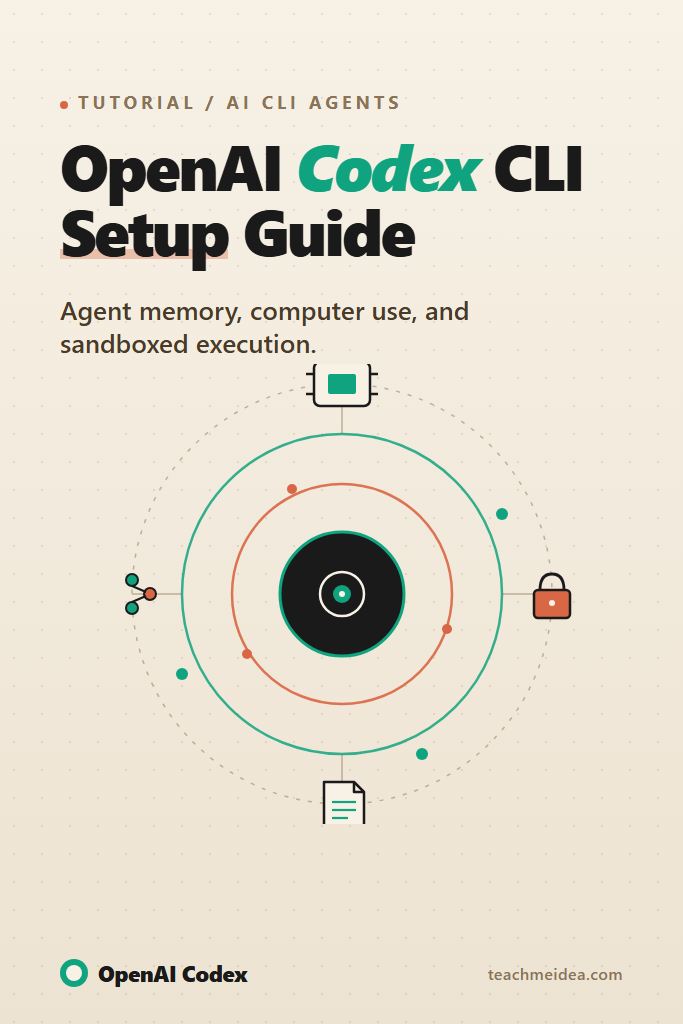
If you want an autonomous coding agent that lives in your terminal, edits real files, and remembers what it did last session, the OpenAI Codex CLI setup is the fastest way to get there. This guide walks through installation, configuration, agent memory persistence, computer use integration, and the production-grade patterns that keep the agent from going off the rails. It targets intermediate developers who already use the OpenAI API and want a Claude Code or Aider alternative backed by GPT-5 and the o-series reasoning models.
By the end, you will have a working Codex CLI installation, a tuned ~/.codex/config.toml, memory that persists across sessions, sandboxed execution rules, and a mental model for when this tool wins over alternatives. The setup itself takes about ten minutes. The interesting parts come after.
What Is the OpenAI Codex CLI?
The OpenAI Codex CLI is an open-source command-line agent that runs locally, reads and edits files in your project, executes shell commands inside a sandbox, and chains tool calls through OpenAI’s reasoning models. Unlike a chat interface, it operates inside your repository with full filesystem context and can run for many turns autonomously while preserving memory between invocations.
It pairs naturally with GPT-5 and the o-series models because their longer reasoning budgets make multi-step planning practical. Furthermore, the CLI ships with built-in approval modes, a configurable sandbox, MCP support, and a memory system based on AGENTS.md files that the agent consults before acting.
Prerequisites for OpenAI Codex CLI Setup
Before you start, make sure you have:
- Node.js 18 or newer (the CLI distributes through npm)
- An OpenAI API key with access to GPT-5 or an o-series model
- A POSIX-style shell (macOS, Linux, or WSL on Windows)
- A repository you actually want the agent to work in — do not point it at your home directory on first run
If you only use Codex through ChatGPT Plus or Pro, you can also sign in with that account instead of an API key. The CLI flow detects both. However, API-key mode gives you cost visibility through the dashboard, which matters once you start running multi-hour sessions.
Step 1: Install the Codex CLI
Install globally with npm:
npm install -g @openai/codex

# Verify
codex --version
If you prefer Homebrew on macOS:
brew install codex
For a fully isolated install, use npx:
npx @openai/codex@latest
After installation, run codex with no arguments inside any repository. The first launch creates ~/.codex/ and prompts you to authenticate. Pick either API key or ChatGPT sign-in.
cd ~/projects/my-app
codex
If the prompt does not appear, your shell PATH probably does not include the npm global bin directory. Add it (commonly ~/.npm-global/bin or /opt/homebrew/bin) to ~/.zshrc or ~/.bashrc and reload.
Step 2: Configure ~/.codex/config.toml
The CLI reads ~/.codex/config.toml on every launch. This file is the single most important part of your OpenAI Codex CLI setup because it controls model selection, sandbox mode, approval policy, and default reasoning effort.
Here is a production-grade starting config:
# ~/.codex/config.toml

# Default model and reasoning budget
model = "gpt-5"
model_reasoning_effort = "medium"

# Sandbox settings — see Section "Computer Use and Sandboxing"
sandbox_mode = "workspace-write"
approval_policy = "on-request"

# Networking and tool defaults
network_access = false
disable_response_storage = false

# Custom profile for tightly-scoped tasks
[profiles.review]
model = "gpt-5"
model_reasoning_effort = "high"
sandbox_mode = "read-only"
approval_policy = "never"

# Custom profile for autonomous long-running work
[profiles.autonomous]
model = "gpt-5"
model_reasoning_effort = "high"
sandbox_mode = "workspace-write"
approval_policy = "never"
Reload by running codex --profile review or codex --profile autonomous. Importantly, profiles let you keep one safe default and opt into looser modes per task instead of editing the top-level config every time.
For teams, commit a shared codex.config.toml to the repo root and let the CLI merge it with the user’s home config. As a result, every contributor gets the same model and sandbox defaults without overwriting personal preferences.
Step 3: Set Up Agent Memory With AGENTS.md
The Codex CLI reads any AGENTS.md file in the working directory (and parent directories) at session start. This is its memory system. The model treats the file as authoritative context that persists across runs.
Create one at your repo root:
# AGENTS.md

## Project Context
This is a TypeScript monorepo using pnpm workspaces. The `apps/web` package
is a Next.js 15 application; `packages/db` contains the Prisma schema and
generated client. Production deploys to Vercel from `main`.

## Coding Conventions
- Use named exports, never default exports
- Tailwind utilities only — no CSS modules, no styled-components
- Database calls always go through `packages/db`, never inline Prisma

## Commands the Agent Should Know
- `pnpm test` runs Vitest across all packages
- `pnpm db:migrate` applies Prisma migrations against the local database
- `pnpm lint:fix` is preferred over `pnpm lint` when fixing issues

## What to Avoid
- Do not run `pnpm install --force`
- Do not modify files under `packages/db/migrations/` directly
- Do not delete generated files in `node_modules` or `.next`
Subdirectories can have their own AGENTS.md for scoped guidance. For example, apps/web/AGENTS.md might describe the Next.js routing conventions while the root file covers the monorepo as a whole. Nested files extend the parent context rather than replace it.
In addition, the CLI maintains rolling session memory in ~/.codex/sessions/. Each session writes a transcript that you can resume with codex resume <session-id> or inspect manually. As a result, you can stop a long task at the end of the day and pick up the same context tomorrow without re-explaining the project.
Step 4: Computer Use and Sandboxing
Computer use in the Codex CLI means the agent can execute shell commands and edit files inside a defined sandbox. The sandbox controls what the agent can touch on your filesystem and whether it can reach the network.
Four sandbox modes are available:
| Mode | Filesystem | Network | Use Case |
|---|---|---|---|
read-only | Read existing files | No | Code review, audits, planning |
workspace-write | Read anywhere, write only inside the repo | No | Default for most coding tasks |
workspace-write + network_access = true | Same writes, plus outbound HTTP | Yes | Tasks that need npm install or API calls |
danger-full-access | Anything | Yes | Last resort, run inside a container |
The recommended default is workspace-write with network_access = false. Consequently, the agent can refactor your code freely but cannot accidentally rm -rf your home directory or curl unknown URLs. When it needs to install dependencies, it pauses and asks for approval, at which point you flip network access on for that turn only.
For paranoid setups — running untrusted prompts, or letting the agent loop overnight — run inside Docker:
docker run --rm -it \
  -v "$(pwd)":/workspace \
  -w /workspace \
  -e OPENAI_API_KEY="$OPENAI_API_KEY" \
  node:20 \
  bash -c "npm i -g @openai/codex && codex --profile autonomous"
The container isolates writes to the mounted workspace and gives you a clean Node environment. Therefore, even a runaway rm -rf / only destroys the container.
Approval Policies in Practice
The approval_policy setting decides when the CLI pauses for your input:
on-request— the agent decides when to ask. Safe default for interactive work.untrusted— every shell command and write requires approval. Slow but bulletproof.on-failure— only ask after a command fails. Good for trusted automation.never— fully autonomous. Pair only withread-onlyor a Docker sandbox.
For most day-to-day coding, on-request paired with workspace-write is the right blend of speed and safety. As a result, you stay in the loop on dangerous operations without having to babysit every file edit.
Step 5: Connect MCP Servers for External Tools
The Codex CLI speaks the Model Context Protocol, so you can give the agent access to databases, browsers, Linear, GitHub, and anything else with an MCP server. Configure them in ~/.codex/config.toml:
[mcp_servers.github]
command = "npx"
args = ["-y", "@modelcontextprotocol/server-github"]
env = { GITHUB_PERSONAL_ACCESS_TOKEN = "ghp_..." }

[mcp_servers.postgres]
command = "npx"
args = ["-y", "@modelcontextprotocol/server-postgres", "postgresql://localhost/myapp"]
After restart, the agent can list issues, open pull requests, and query your local database without leaving the terminal. For a deeper tour of the protocol, see our Claude Code MCP servers guide — the configuration shape is nearly identical because both tools implement the same spec.
Step 6: Run Your First Real Task
Open the CLI inside a repo and give it a concrete task:
codex
Then in the prompt:
Audit the
apps/web/lib/auth.tsfile. List every place that handles JWT verification. Then add a unit test covering the expired-token path. Runpnpm testto confirm it passes before finishing.
Watch what happens. The agent reads AGENTS.md, opens the file, plans its approach, writes the test, runs the suite, and reports back. If the test fails, it iterates. Furthermore, every shell command shows up in your terminal, so you can interrupt at any point with Ctrl+C.
For non-interactive runs — CI jobs, scripts, scheduled tasks — use the headless mode:
codex exec --profile autonomous \
  "Update all dependencies in package.json to the latest minor version, run tests, and commit if green."
Headless mode reads the same config and AGENTS.md files, but skips the interactive UI. Therefore, it slots cleanly into GitHub Actions or cron.
Real-World Scenario: Refactoring a Legacy Module
Consider a mid-sized TypeScript codebase with a 1,200-line userService.ts file that has accumulated three different validation patterns over two years. A senior engineer wants to consolidate them but does not have a free afternoon to do it by hand.
A practical Codex CLI session for this might look like:
- Create
apps/api/AGENTS.mddescribing the existing validation patterns and which one is canonical - Launch
codex --profile reviewfirst to get a plan and a list of risky call sites - Switch to
codex --profile autonomousand ask it to migrate one pattern at a time, running tests after each - Review the diff at the end, not after each edit
In this kind of workflow, the agent typically takes longer than a human would to produce the first diff, but it touches every call site consistently and never gets bored on edit number 47. The trade-off is that you spend more reviewing time and less typing time, which is the right shape for most refactors.
The biggest pitfall is letting the agent run autonomously without a strong AGENTS.md. Without context, it tends to invent conventions that contradict the rest of the codebase, and you spend more time reverting than reviewing.
When to Use OpenAI Codex CLI
- You already pay for OpenAI API access and want a CLI agent that uses GPT-5 reasoning
- You need a tool that runs locally with full filesystem access, not a hosted IDE
- Your workflow includes long-running autonomous tasks like dependency upgrades or test backfills
- You want MCP integrations with the same agent you use for coding
When NOT to Use OpenAI Codex CLI
- You prefer Claude’s models — use Claude Code instead
- You need a polished GUI experience — Cursor or Windsurf will feel less raw
- Your repos contain regulated data that cannot leave your network without strict review — use a self-hosted alternative
- You only need quick autocomplete, not multi-turn agentic edits
Common Mistakes With OpenAI Codex CLI
- Skipping
AGENTS.mdand then complaining the agent does not understand your code - Leaving
sandbox_mode = "danger-full-access"on by default because approvals felt slow - Running
codex --profile autonomousoutside a sandboxed directory and watching it edit unrelated repos - Ignoring the session transcripts under
~/.codex/sessions/— they are gold for debugging weird agent behavior - Forgetting that
model_reasoning_effort = "high"increases both quality and cost significantly
How to Tune Cost and Latency
GPT-5 with high reasoning effort produces the best results but also the highest bills. A few patterns keep cost predictable:
- Use
mediumreasoning for routine edits,highonly for refactors and audits - Set
model_reasoning_effort = "low"for the autonomous profile when running scheduled jobs - Compress long
AGENTS.mdfiles — every session reads them, so verbose context pays the cost every time - Cap session length explicitly when running headless:
codex exec --max-turns 20
Furthermore, the dashboard breaks usage down by request, so you can attribute a runaway bill to a specific session and tighten guardrails. For more on optimizing OpenAI usage, see our guide on the OpenAI Batch API — for any work that does not need real-time interaction, batch can cut inference cost in half.
Codex CLI vs Claude Code vs Aider
Quick comparison for the three most popular terminal coding agents:
| Feature | Codex CLI | Claude Code | Aider |
|---|---|---|---|
| Primary model | GPT-5, o-series | Claude 4.x | Any (OpenAI, Anthropic, local) |
| Memory file | AGENTS.md | CLAUDE.md | .aider.conf.yml + chat history |
| Sandbox modes | 4 levels | Permission-based | Manual |
| MCP support | Yes | Yes | Limited |
| Git integration | Manual | Built-in commit flow | Auto-commits |
| Best for | OpenAI-heavy stacks | Claude-heavy stacks, large refactors | Multi-provider flexibility |
If you already have an OpenAI API budget, Codex CLI is the natural starting point. For a fuller side-by-side, see our Cursor vs Claude Code comparison, which covers the GUI-versus-terminal tradeoff for both ecosystems.
Troubleshooting Common Setup Issues
The CLI hangs on first run. Almost always a networking issue reaching OpenAI’s API. Check OPENAI_API_KEY and try curl https://api.openai.com/v1/models to confirm reachability.
The agent refuses to run a shell command. Your sandbox mode probably blocks it. Check ~/.codex/config.toml and either widen the sandbox temporarily or approve the command in the UI.
AGENTS.md does not seem to take effect. Confirm the file is in the working directory the CLI was launched from. The CLI walks up from pwd, not from your home directory.
Sessions do not resume. Sessions live in ~/.codex/sessions/<session-id>.jsonl. If you cleared that directory, history is gone. Back it up if you rely on long-running context.
Costs spike unexpectedly. Switch the default profile to medium reasoning and inspect the most recent session transcript. Long tool-use loops with high reasoning are the usual culprit.
Conclusion: Your Next Steps With Codex CLI
A complete OpenAI Codex CLI setup gives you an autonomous coding agent that reads AGENTS.md for memory, runs inside a tunable sandbox for computer use, and connects to external tools through MCP. Start with workspace-write and on-request approvals, write a real AGENTS.md for your project, and only flip to autonomous mode once you trust the agent inside that repo.
For your next step, build out an AGENTS.md for one project and run a small end-to-end task — adding a test, fixing a lint warning, or upgrading a dependency. After that, explore our guide on building AI agents with tools, planning, and execution to deepen the mental model behind why these CLIs work the way they do, and the Claude computer use guide for the closest non-OpenAI alternative.