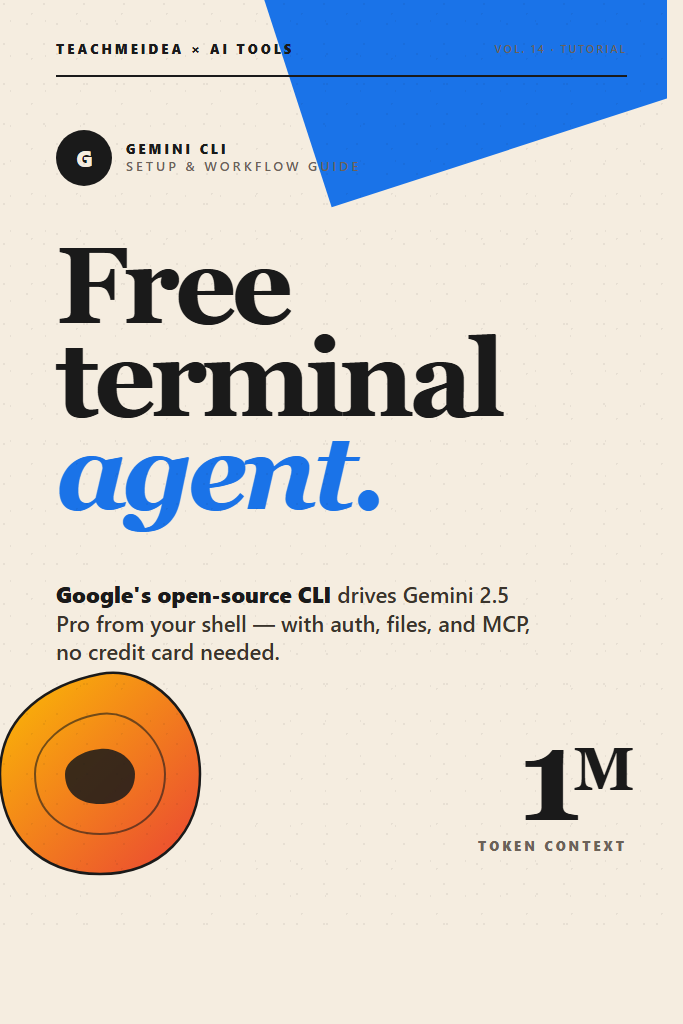
If you have been watching Claude Code and Codex CLI from a distance because the per-token costs scared you off, Gemini CLI is the lowest-friction way to try a real terminal coding agent. Google released it as an open-source tool that runs against the same Gemini 2.5 Pro model powering its paid products, and the free tier lets you sign in with a personal Google account and start editing files immediately — no credit card, no API key. This Gemini CLI tutorial walks through installation, authentication, the project-scoped context system, MCP integration, and the workflows that actually pay off in day-to-day engineering work.
This guide is aimed at intermediate developers who already know what an LLM coding agent does and want a practical setup, not a marketing tour. By the end you will have Gemini CLI running, understand when its 1M-token context window matters, and know how it stacks up against the alternatives you are probably already running.
What Is Gemini CLI?
Gemini CLI is Google’s open-source command-line agent that drives Gemini 2.5 Pro from your terminal, with built-in tools for reading and editing files, running shell commands, searching the web, and connecting to external systems through the Model Context Protocol. It ships under the Apache 2.0 license, supports a generous free tier through personal Google sign-in, and treats your project directory as its working memory.
Unlike a chat UI, the CLI takes actions on your machine. It edits source files, runs your test suite, and stages git commits — with explicit confirmation prompts before each tool call by default. Because it runs locally, it has direct access to your file system instead of working from pasted snippets, which is the main reason these terminal agents have started replacing chat-window workflows for real engineering work.
Why Gemini CLI Matters
Three things make Gemini CLI worth a serious look in 2026.
First, the free tier. Sign in with a personal Google account and you get roughly 60 model requests per minute and 1,000 per day against Gemini 2.5 Pro at no cost. For a developer using a coding agent for a few hours a day, this is enough headroom to handle most real work without ever touching billing.
Second, the 1-million-token context window. Gemini 2.5 Pro can hold an enormous slice of a codebase at once. For monorepos or long debugging sessions, this changes what kinds of questions are answerable in a single turn. Asking “which files in this 200k-line repo touch the auth flow” is a realistic prompt instead of a wishful one.
Third, the MCP-first architecture. Gemini CLI was built around the Model Context Protocol from day one, so connecting it to your own tools, internal docs, or third-party systems is configuration, not custom code.
Prerequisites
Before installing, make sure you have:
- Node.js 20 or newer (
node -vto check; use nvm or asdf if you need to upgrade) - A personal Google account for the free tier, or a Google AI Studio API key for paid usage
- A terminal with a project directory you can experiment in (do not point it at production code on your first run)
- Git installed if you want the commit and PR workflows to work
The agent runs on Windows, macOS, and Linux. WSL works fine on Windows if you prefer a Linux shell.
Step 1: Install Gemini CLI
The fastest install is npm:
npm install -g @google/gemini-cli

# Verify the install
gemini --version
If you do not want a global install, you can run it on demand without polluting your global node_modules:
npx @google/gemini-cli
For Homebrew users on macOS:
brew install gemini-cli
The npm path is the most reliable across platforms and the one most tutorials assume. Stick with it unless you have a specific reason not to.
Step 2: Authenticate with Your Google Account
Navigate to a project directory and run:
cd ~/code/my-project
gemini
On first launch the CLI opens a browser window and asks you to sign in with Google. Approve the OAuth scope, return to the terminal, and you are in. The token is cached in ~/.gemini/ so you only do this once per machine.
For shared machines or CI environments, use an API key instead:
# Get a key from https://aistudio.google.com/apikey
export GEMINI_API_KEY="your-key-here"
gemini
The API key path uses Gemini’s standard pay-as-you-go pricing instead of the free tier. For local development, the OAuth route is almost always the right choice.
Step 3: Your First Real Task
The interactive prompt accepts natural language. Try something concrete that touches more than one file:
> Add a /health endpoint to my Express app that returns { status: "ok", uptime: process.uptime() }. Update the existing tests to cover it.
Gemini CLI will read the project structure, propose a plan, and then ask permission before each edit or shell command. You will see prompts like:
Edit src/routes/health.ts? (y/n/a)
Run npm test? (y/n/a)
The a option auto-approves similar operations for the rest of the session. Use it sparingly — the confirmation prompts are your last line of defense against an agent doing something you did not intend.
When the task finishes, run your tests manually to verify. Agents are good at producing plausible code, but only your test suite knows whether the change actually works.
Step 4: Project Context with GEMINI.md
Gemini CLI looks for a GEMINI.md file in your project root and treats it as durable instructions for every session in that directory. This is where you encode the conventions an outside agent has no way to guess:
# My Project

## Stack
- Node.js 20 with Express 4
- PostgreSQL via Prisma
- Vitest for tests, ESLint + Prettier for style

## Conventions
- All async handlers must wrap errors with our `asyncHandler` helper
- Database queries belong in `src/repositories/`, never in route handlers
- Use named exports only — no default exports
- Test files live next to source files: `foo.ts` + `foo.test.ts`

## Commands
- Tests: `npm test`
- Lint: `npm run lint`
- Migration: `npm run db:migrate`
The file is human-readable Markdown. Keep it short and rule-shaped. Long prose gets ignored by both humans and agents — bullet points get followed.
This is the same idea as Cursor’s project rules and Claude Code’s CLAUDE.md. The agent landscape has converged on this pattern because it works.
Step 5: Connect MCP Servers
MCP servers extend Gemini CLI with new tools. Configure them in ~/.gemini/settings.json or project-level .gemini/settings.json:
{
  "mcpServers": {
    "filesystem": {
      "command": "npx",
      "args": ["-y", "@modelcontextprotocol/server-filesystem", "/Users/me/docs"]
    },
    "github": {
      "command": "npx",
      "args": ["-y", "@modelcontextprotocol/server-github"],
      "env": {
        "GITHUB_PERSONAL_ACCESS_TOKEN": "ghp_..."
      }
    },
    "postgres": {
      "command": "npx",
      "args": ["-y", "@modelcontextprotocol/server-postgres", "postgresql://localhost/mydb"]
    }
  }
}
After saving, restart the CLI and the new tools are available. Now Gemini CLI can read GitHub issues, query your local database, or pull from a docs directory directly. The same MCP servers work across other agents, so the configuration effort is portable.
For an introduction to what MCP actually does and how to pick servers, see our MCP server walkthrough for Claude Code — the protocol is identical.
Step 6: Use Slash Commands and File References
Inside the CLI, type / to see built-in commands:
/help— list available commands/clear— reset conversation context/compress— summarize long conversations to save tokens/tools— show all loaded tools, including MCP-provided ones/quit— exit
Use @ to inject specific files into context without making the model search for them:
> @src/auth/login.ts @src/auth/login.test.ts Refactor the login flow to use our new TokenService class. Update tests accordingly.
Pinning files this way is more reliable than describing them in prose, and it cuts down on wasted tool calls. When you know the files involved, name them.
Step 7: Non-Interactive Mode for Scripting
Gemini CLI works as a one-shot command, which makes it composable with shell pipelines and CI:
# Generate a commit message from staged changes
git diff --cached | gemini -p "Write a conventional commit message for these changes."

# Triage a stack trace
gemini -p "Explain this error and suggest a fix" < error.log

# Pre-commit hook: review staged Python files
git diff --cached --name-only --diff-filter=ACM | grep '\.py$' | \
  xargs -I {} gemini -p "Review {} for bugs and style issues."
This is where Gemini CLI starts to feel like a Unix tool instead of a chatbot. Pipe stuff in, get text out, integrate with whatever you already have.
Real-World Workflow: Migrating a Legacy Endpoint
Here is a workflow that exercises most of what makes Gemini CLI useful. Imagine a mid-sized Node.js codebase where one route still uses callbacks and lacks tests, and you want to modernize it.
In the project directory:
> @src/routes/orders.js Look at this file. It uses callbacks and has no tests. Convert it to async/await, extract the database calls into a repository module under src/repositories/, and add Vitest tests covering the happy path plus the two error paths I see in the existing logging. Use the patterns from src/routes/users.ts as a reference.
Gemini CLI plans the refactor, shows you the proposed edits across three files, asks for confirmation, then applies them. You run the tests manually and find one assertion that needs adjusting because the existing logger emits a slightly different shape than the new one expects. You ask the CLI to fix that specific case, and it does.
The whole loop takes maybe fifteen minutes for what would have been an afternoon of careful keyboarding. The 1M-token context window matters here because you can pull in the existing users.ts route as a reference example without trimming or summarizing it. The model sees the real conventions and matches them.
When to Use Gemini CLI
- You want a free, capable terminal coding agent without a credit card
- Your project has a large codebase that benefits from a 1M-token context window
- You need MCP integration and want a CLI that was built around it
- You are already heavily invested in Google Cloud or Workspace
- You want to script the agent into shell pipelines or CI workflows
When NOT to Use Gemini CLI
- You need the agent to operate fully unattended over long horizons (Claude Code’s auto-accept and hooks ecosystem is more mature)
- Your team standardizes on Anthropic or OpenAI models for compliance reasons
- You hit the daily request cap regularly and refuse to pay — at heavy use you may exceed the free tier and the paid Gemini API can match or exceed Claude pricing depending on the workload
- You need first-class GUI integration; Gemini CLI is terminal-first, with IDE plugins lagging behind alternatives
Common Mistakes with Gemini CLI
- Skipping the GEMINI.md file. Without it, the agent guesses at conventions and produces code that fails review. A 30-line file fixes this.
- Auto-approving every tool call. The
ashortcut is convenient, but on a fresh project it leads to surprise file edits and shell commands. Approve case-by-case until you trust the boundaries. - Treating the 1M-token context as free. Pulling whole repos into context still consumes tokens and slows responses. Use
@references for the files that matter and let the agent search for the rest. - Forgetting to
/compresslong sessions. Multi-hour conversations accumulate context and start hitting limits or producing slower responses. Compressing every hour or so keeps the agent sharp. - Confusing the free tier with the paid API. OAuth login uses the free quota; setting
GEMINI_API_KEYswitches to billed usage. Mixing them up has burned more than one developer who thought they were running for free.
Gemini CLI vs Other Terminal Agents
Gemini CLI sits in a crowded field. The honest comparison:
| Feature | Gemini CLI | Claude Code | Aider | OpenCode |
|---|---|---|---|---|
| Default model | Gemini 2.5 Pro | Claude Sonnet/Opus | User-configurable | User-configurable |
| Free tier | Yes (Google account) | No | No | No (model costs) |
| Context window | 1M tokens | 200K (1M with extension) | Model-dependent | Model-dependent |
| MCP support | First-class | First-class | Limited | Yes |
| Open source | Yes (Apache 2.0) | No | Yes | Yes |
| Best for | Cost-sensitive, large codebases | Polished workflows, hooks | Git-centric editing | Multi-model flexibility |
For a head-to-head between two of the most popular options, see our Claude Code vs OpenCode comparison and the broader AI code assistants compared roundup. For terminal-native pair programming with a different philosophy, Aider’s approach is worth a look.
Tips That Pay Off Quickly
A few smaller habits compound over a few weeks of use.
Pin files explicitly with @ whenever you know which files are involved. The agent stops guessing and starts working.
Keep your GEMINI.md updated as conventions change. Stale rules get followed too, and they produce stale code.
Use /compress proactively before starting a new sub-task in a long session. The performance difference is noticeable.
Use non-interactive mode for repetitive jobs — commit messages, log triage, code review on diffs. The CLI is faster than the interactive loop when you know exactly what you want.
Run important agent runs from a clean git working tree so you can git diff and git checkout -- . if the result is wrong. Recovery is much faster when the only changes in your tree are the agent’s.
Conclusion
Gemini CLI is the easiest terminal coding agent to start with in 2026 because the free tier removes the friction of setting up billing before you know whether the tool is worth it. The 1M-token context window genuinely changes what is possible on large codebases, and the MCP-first design means you are not locked into Google’s ecosystem if you want to extend it.
Set up GEMINI.md, configure two or three MCP servers that match your stack, and spend a week using Gemini CLI as your default coding agent before deciding whether to pay for something else. If your workflow needs more polished hooks and unattended operation, Claude Code’s setup guide is the natural next stop. If you want a flexible multi-model alternative, the OpenCode setup walkthrough covers that path. Either way, knowing how Gemini CLI handles real work gives you a baseline to compare against.